
The LoRA Library in Video Generation stored your trained avatars so you could apply them directly to AI video generation. WAN 2.2 was the only video model with a dedicated LoRA Library — the character stayed consistent in the output without a reference image from Image Generation. Here's how it worked.
Select WAN 2.2
You opened Video and chose WAN 2.2 from the model selector. This was the model with a dedicated LoRA Library control in the Video control bar.
Open the LoRA Library
Clicking LoRA Library opened a panel on the left side with three tabs: Avatar, Style, and Product.
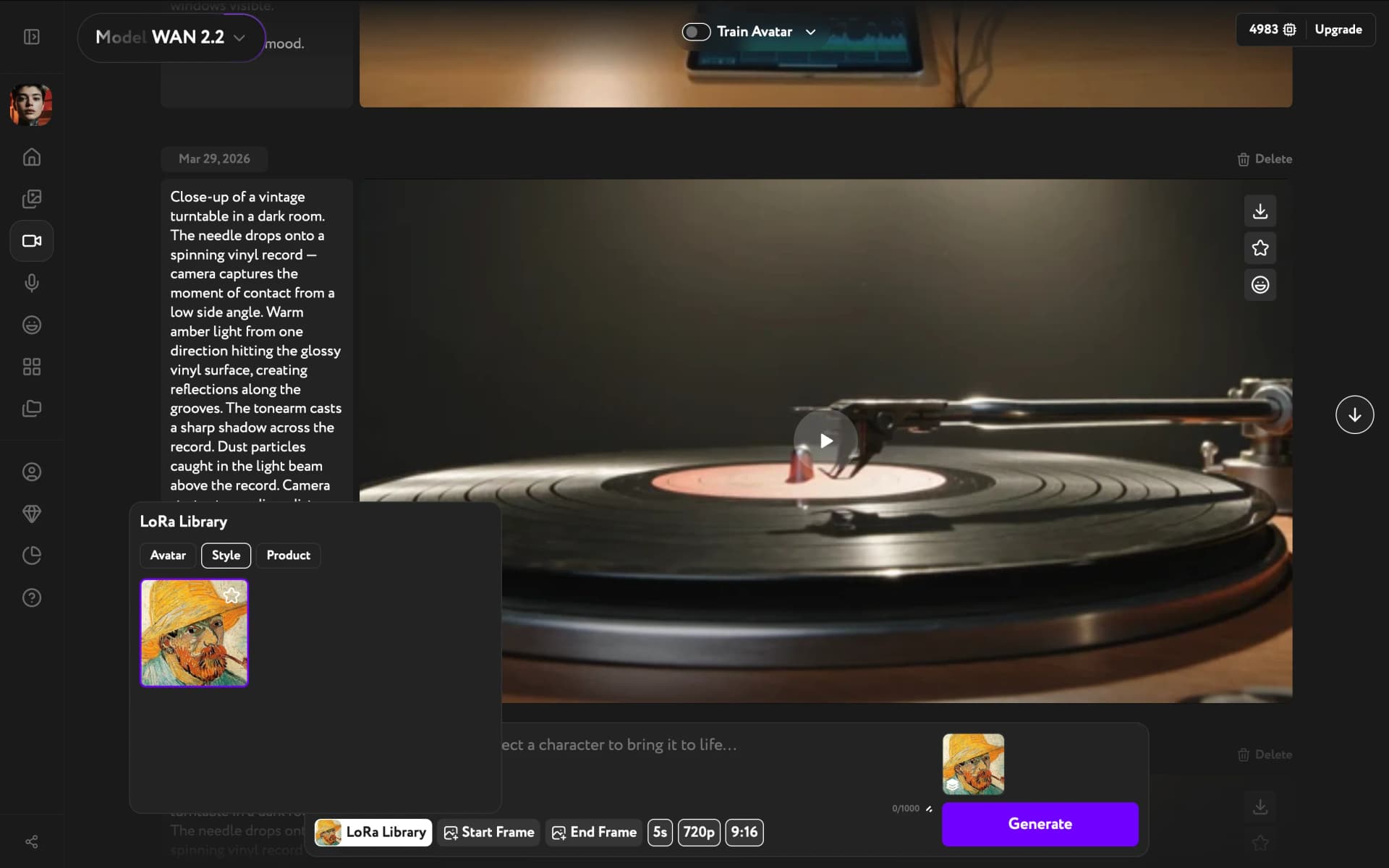
- Avatar — trained characters (people or consistent personas)
- Style — trained visual styles
- Product — trained product appearances
Apply a LoRA
You clicked a trained avatar in the Avatar tab. Selecting an avatar closed the panel and activated the LoRA for the next generation. You wrote your prompt describing the scene, then clicked Generate, and the character from your LoRA appeared in the generated video.
Why video LoRAs were different
In Image Generation, LoRAs generate a reference image that Video Generation then animates. That two-step process introduces variation at the animation stage. WAN 2.2 with a LoRA skipped the intermediate image entirely — the character identity went straight into the video model, giving more consistent results across multiple generations.