
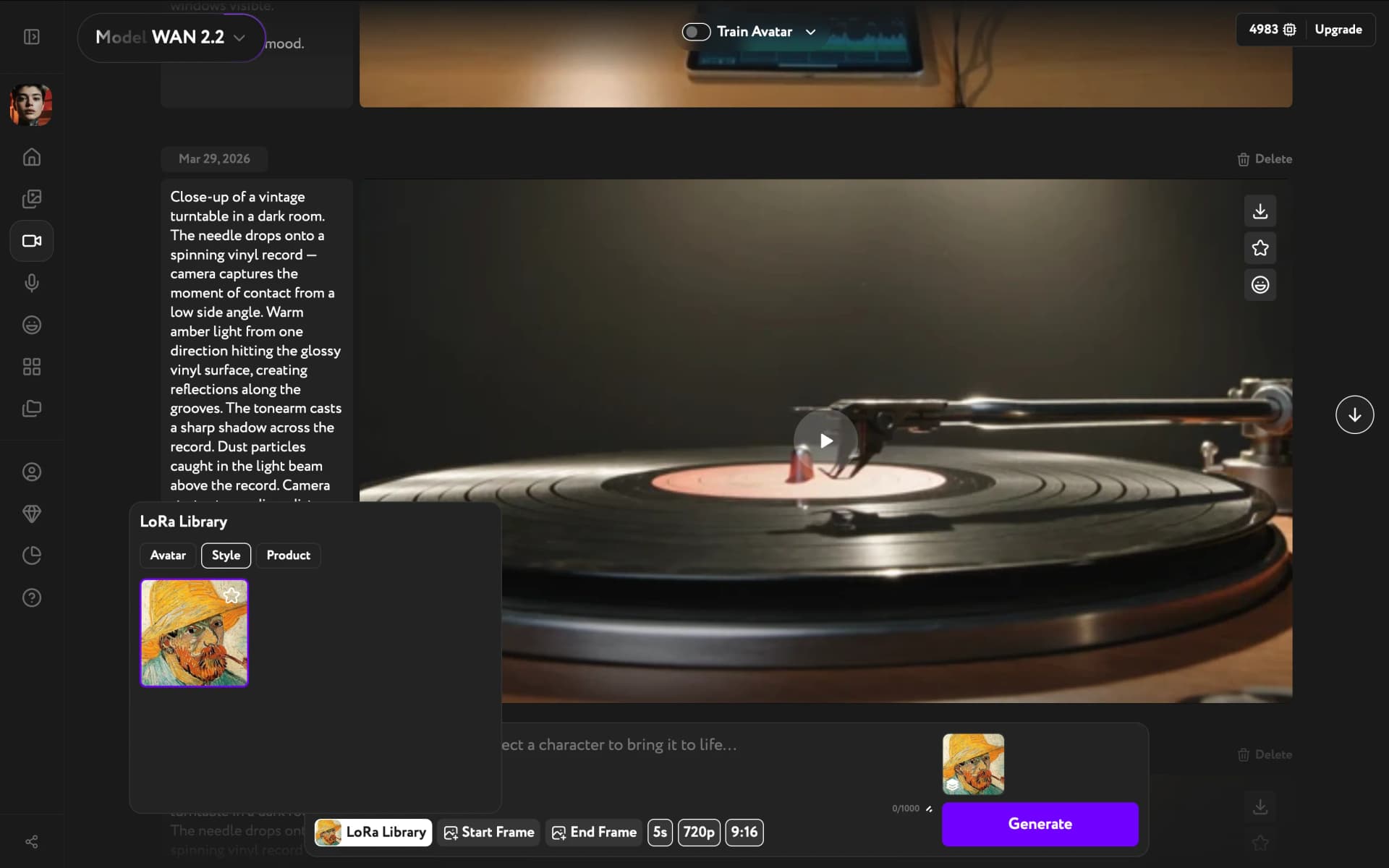
WAN 2.2 supported LoRA training directly in Video Generation — Workroom's AI video generation studio. You uploaded reference photos of a person, a visual style, or a product, and the model learned to apply that look consistently across your video generations, without first creating a reference image in Image Generation. Here's how the workflow ran.
Before you begin
You needed 15–30 clear photos of the same person. The model learned from variety — different angles, expressions, and lighting conditions. Sunglasses, hats, or anything obscuring the face had to be avoided.
Select WAN 2.2
You opened Video and clicked the model selector in the top-left, then chose WAN 2.2 — it showed a Trainable badge. The control bar updated to show LoRA Library, Start Frame, and the Train Avatar toggle in the top-right.
Enable Train Avatar mode
Clicking the Train Avatar toggle at the top-right switched the interface from the generation view to the avatar creation screen.
Upload your photos
The upload screen showed example reference photos and a drop zone.
You dragged your photos onto the drop zone or clicked Upload to browse. At least 15 photos were required for training to start. The screen showed your upload count as you added files.
Photo requirements:
- Face clearly visible, no heavy accessories
- Different angles and expressions
- Various lighting conditions
- Single person per training session
Start training
Use the trained avatar
After training, you opened Video with WAN 2.2 selected and clicked LoRA Library in the control bar, then picked your LoRA from the list. The LoRA applied to your next generation — keeping the character, style, or product consistent across all your videos without going through Image Generation first.
You could also start a generation directly from the LoRA Library: the Generate button on any trained LoRA card opened Video with that LoRA already applied.