
Once you train a LoRA in Image Generation — avatar, style, or product — it appears in the LoRA Library. From there you can apply it to any AI image generation.
Open the LoRA Library
The LoRA Library is only available when a trainable model is active — currently Z-Image. If you don't see the button, switch to one of these models first.
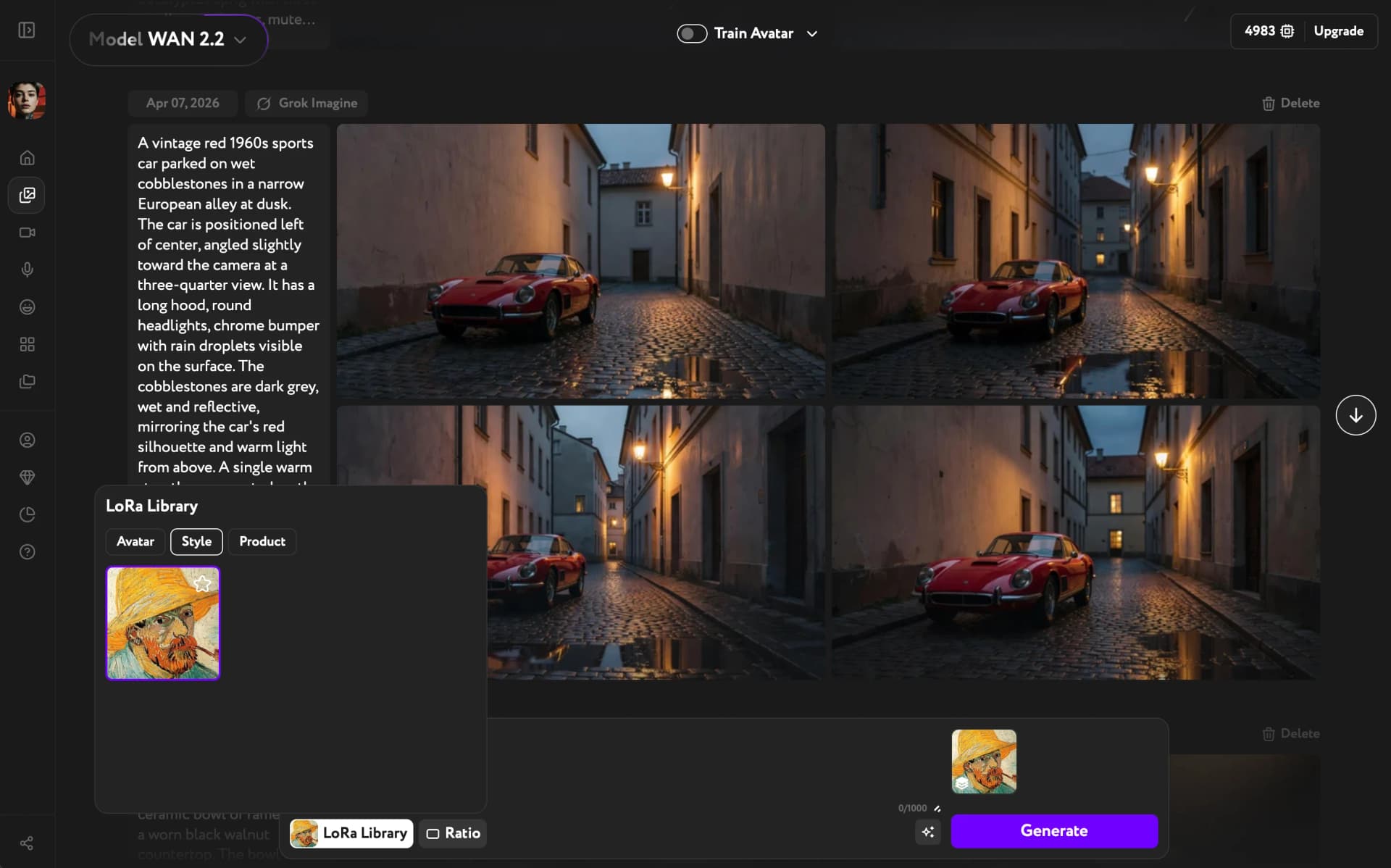
Click the LoRA Library button in the prompt bar. The panel opens above the prompt with three tabs: Avatar, Style, and Product. Each tab shows the LoRAs you've trained in that category.
Select a LoRA
Click any LoRA in the library to activate it. The selected LoRA is highlighted and its name appears in the prompt bar. You can have one LoRA active per generation.
Generate with a LoRA
With a LoRA selected, write your prompt and click Generate. The model applies the LoRA — your avatar, style, or product — to the scene you describe.
Describe the scene, not the LoRA subject. If your avatar LoRA is trained on a person, write "standing on a rooftop at sunset" rather than redescribing the person — the LoRA handles their appearance.
LoRAs only appear after training is complete. If the library is empty, train an avatar, style, or product LoRA first.