
Video Generation is Workroom's AI video studio — multiple models to generate video from a text prompt or a reference image. They vary in maximum resolution, duration, and what controls appear in the interface. Some generate native audio alongside video. Kling O1 offers four distinct generation modes, including video editing.
Model overview
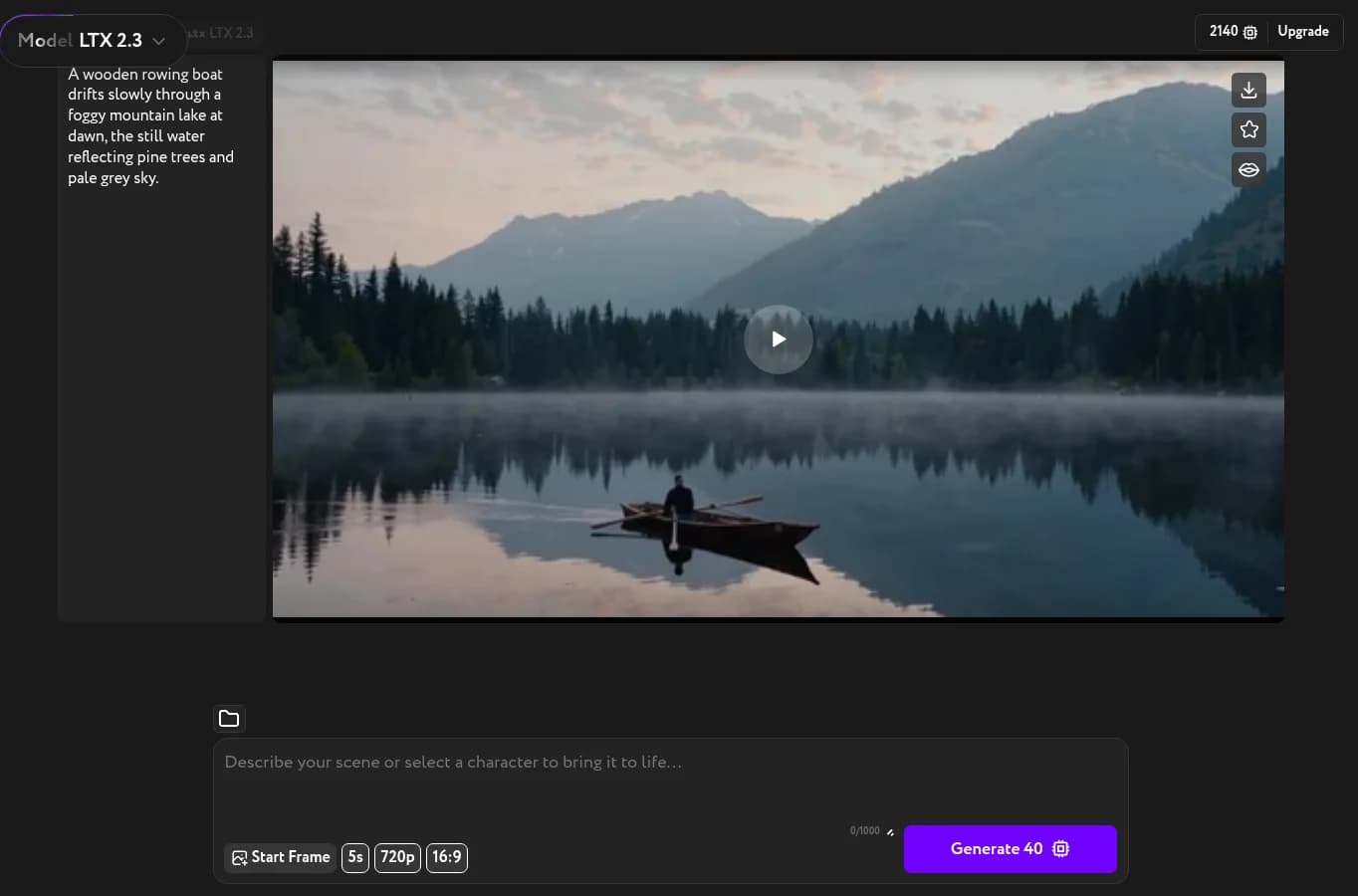
| Model | Resolution | Duration | Audio | Unique controls |
|---|---|---|---|---|
| LTX 2.3 | 720p | 5s | — | — |
| Hailuo 02 | 768p | 6s | — | — |
| Seedance 2.0 | 1080p | ~15s | ✓ | Inline reference prompting, multimodal input (text, image, audio, video) |
| Seedance Pro | 720p | 5s | — | — |
| WAN 2.6 | 720p | 5s | ✓ | Video mode, Single/Multi-shot |
| Kling O1 | — | 5s | — | 4 modes: Text / Image / Reference / Edit |
| Runway Gen-4.5 | — | 5s | — | — |
| Runway Gen-4 | — | 5s | — | — |
| Runway Gen-4 Aleph | 720p | — | — | — |
| Kling 2.6 Pro | — | 5s | ✓ | Natural motion mode |
| Kling 3.0 | Standard | 7s | ✓ | — |
| Veo 3 Fast | 1080p | 8s | ✓ | — |
| Veo 3.1 Fast | 1080p | 8s | ✓ | — |
| Veo 3 | 1080p | 8s | ✓ | — |
| Veo 3.1 | 1080p | 6s | ✓ | References input |
Kling O1 — four generation modes
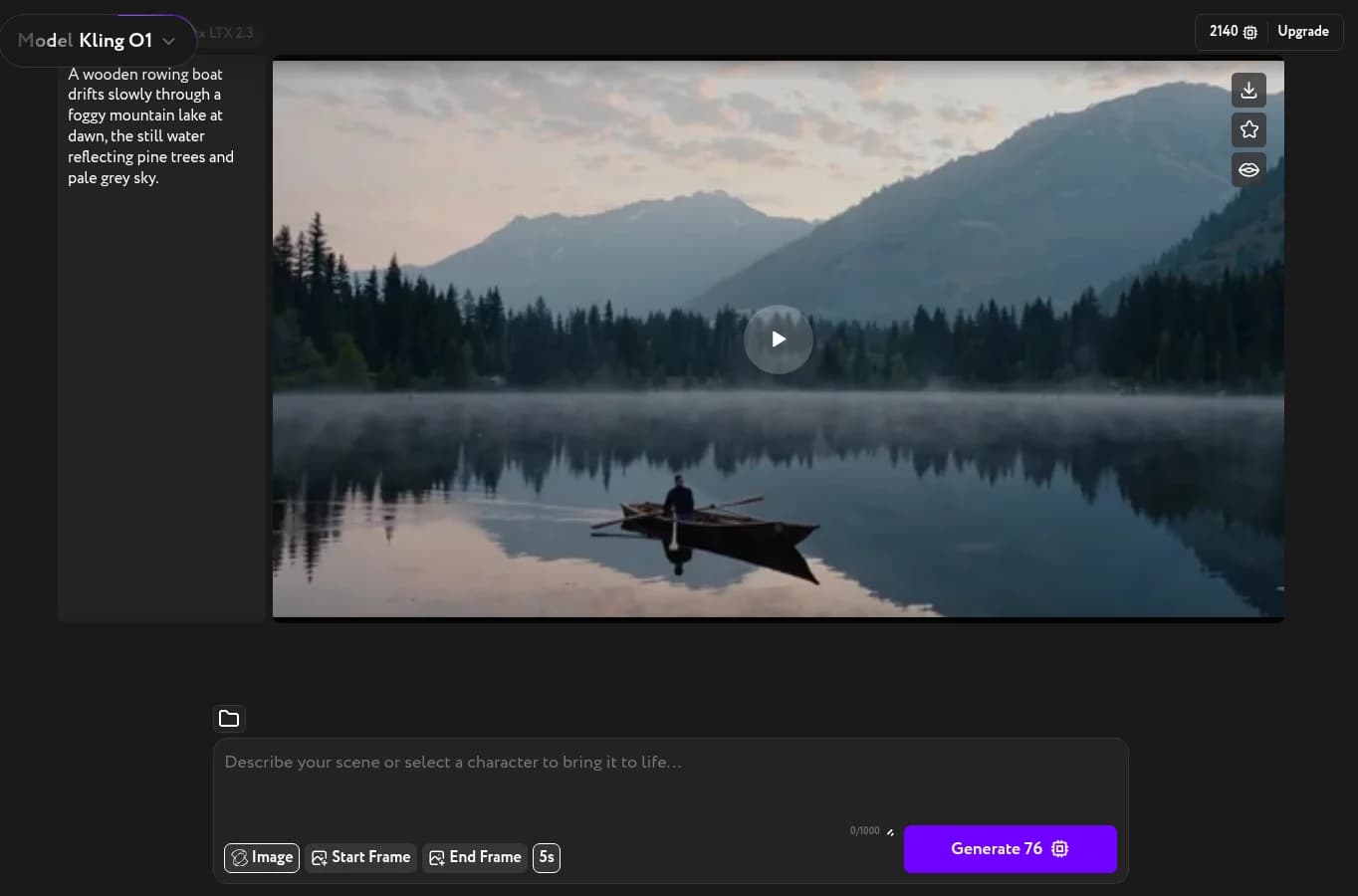
Kling O1 has a mode selector in the control bar that switches between four distinct workflows:
Text — generates video from a prompt only. The default mode.
Image — animates a starting image. Shows Start Frame and End Frame inputs. Aspect ratio is determined by the uploaded image, not by a selector.
Reference — uses existing footage as a style or composition guide without animating it directly. Shows two separate inputs: Video (a single reference video) and References (one or more images).
Edit — edits an existing video based on your prompt. Shows a Video input and an Original audio control (Remove or Keep). Duration and aspect ratio are inherited from the source video.
Models with native audio
Several models generate audio — music, ambience, or speech — alongside the video. An Audio toggle appears in the control bar.
- Seedance 2.0 — 1080p output
- Veo 3.1, Veo 3.1 Fast — 1080p output
- Veo 3, Veo 3 Fast — 1080p output, audio toggle
- Kling 3.0 — Standard resolution, audio toggle
- Kling 2.6 Pro — Natural motion mode
- WAN 2.6 — adds Video mode for image-to-video
Veo 3.1 — References instead of Start Frame
Veo 3.1 adds a References input alongside Start Frame. Attach multiple images to guide the visual style of the output. Start Frame controls the opening frame of the video.
WAN 2.6 — multi-shot sequences
WAN 2.6 adds a Single/Multi-shot selector. Multi-shot generates a sequence of connected videos from a single prompt, useful for longer narratives. A Video mode button also appears for image-to-video workflows.
Switch your model
Open the model selector in the top-left corner of Video. Selecting any model immediately updates the controls in the bottom bar.
Prompt examples by model
Tested prompts for these models, each shown next to the clip it produced. Copy one as a starting point for your own.
- Hailuo 02 — prompt examples
- Kling 2.6 Pro — prompt examples
- Kling 3.0 — prompt examples · model overview
- Kling O1 — prompt examples
- LTX 2.3 — prompt examples · model overview
- Runway Gen 4.5 — prompt examples · model overview
- Seedance 2.0 — prompt examples · model overview
- Seedance 2.5 — prompt examples
- Seedance Pro — prompt examples
- Veo 3.1 — prompt examples
- WAN 2.2 — prompt examples
- WAN 2.6 — prompt examples
- WAN 3.0 — prompt examples