Video Generation is Workroom's AI video studio — it turns a text description or a reference image into a short video.
Open Video Generation
Choose your model
Write a prompt
Click the prompt textarea at the bottom and describe your scene. Include a subject, a setting, and a mood.
Example: "Cherry blossoms falling in slow motion against a bright blue sky, macro lens, soft natural light."
Configure the settings
Five controls appear in the bar below the prompt:

Start Frame — attach an image to anchor the opening shot. Leave it empty to generate from the prompt alone.
End Frame — attach an image to anchor the closing shot. Leave it empty to let the model decide how the video ends.
Duration — 5 seconds by default. Longer durations cost more credits.
Resolution — 720p by default. Some models go up to 1080p.
Aspect ratio — 16:9 for landscape, 9:16 for vertical, 1:1 for square.
Generate
Click Generate — the button shows the exact credit cost before you click. The deduction is immediate and a progress ring appears in the player.
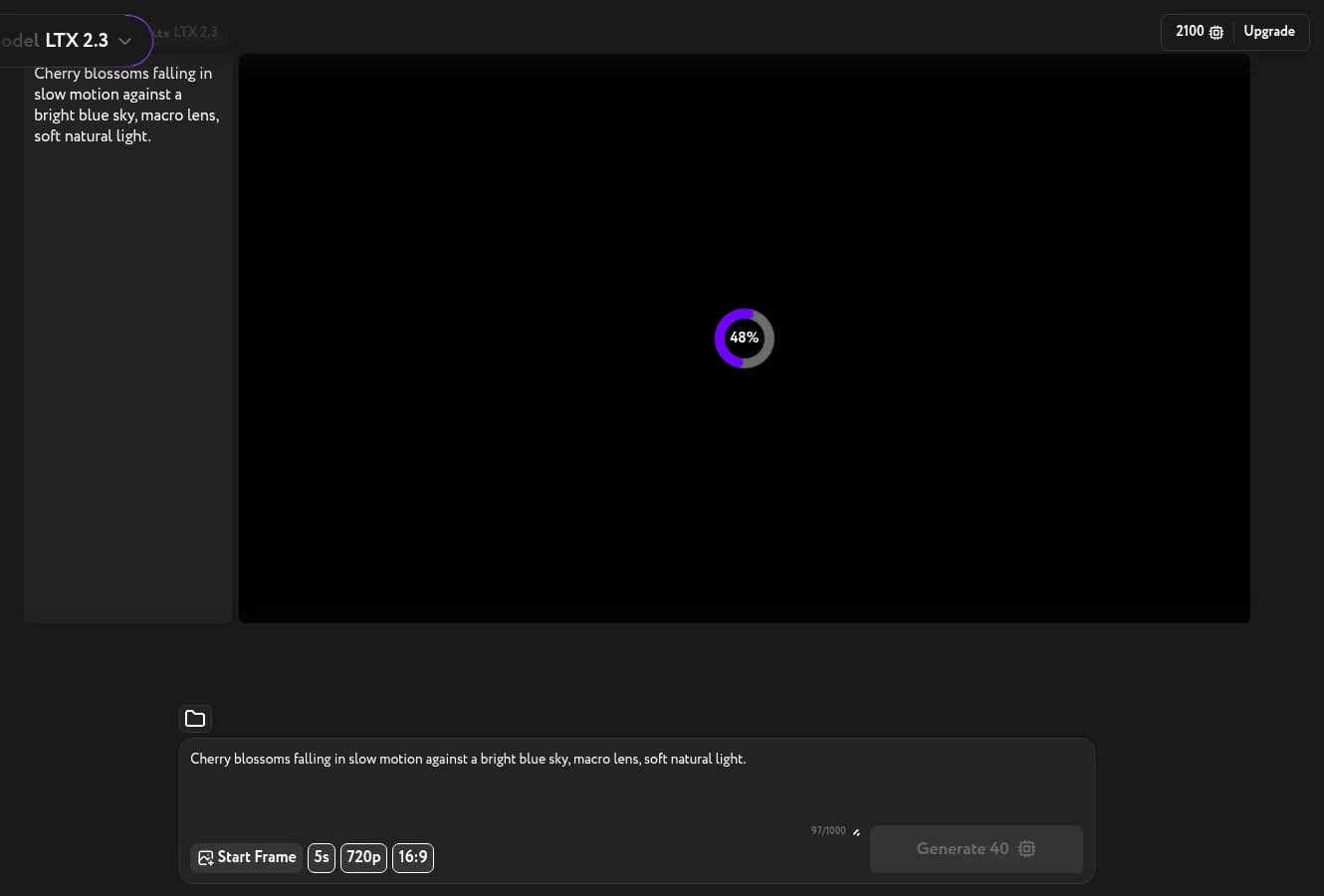
Generation takes a few minutes depending on the model. You can leave the page; the result stays in your history when you return.
Use your result
When the video is ready it fills the player. Three action buttons appear in the top-right corner of the player:
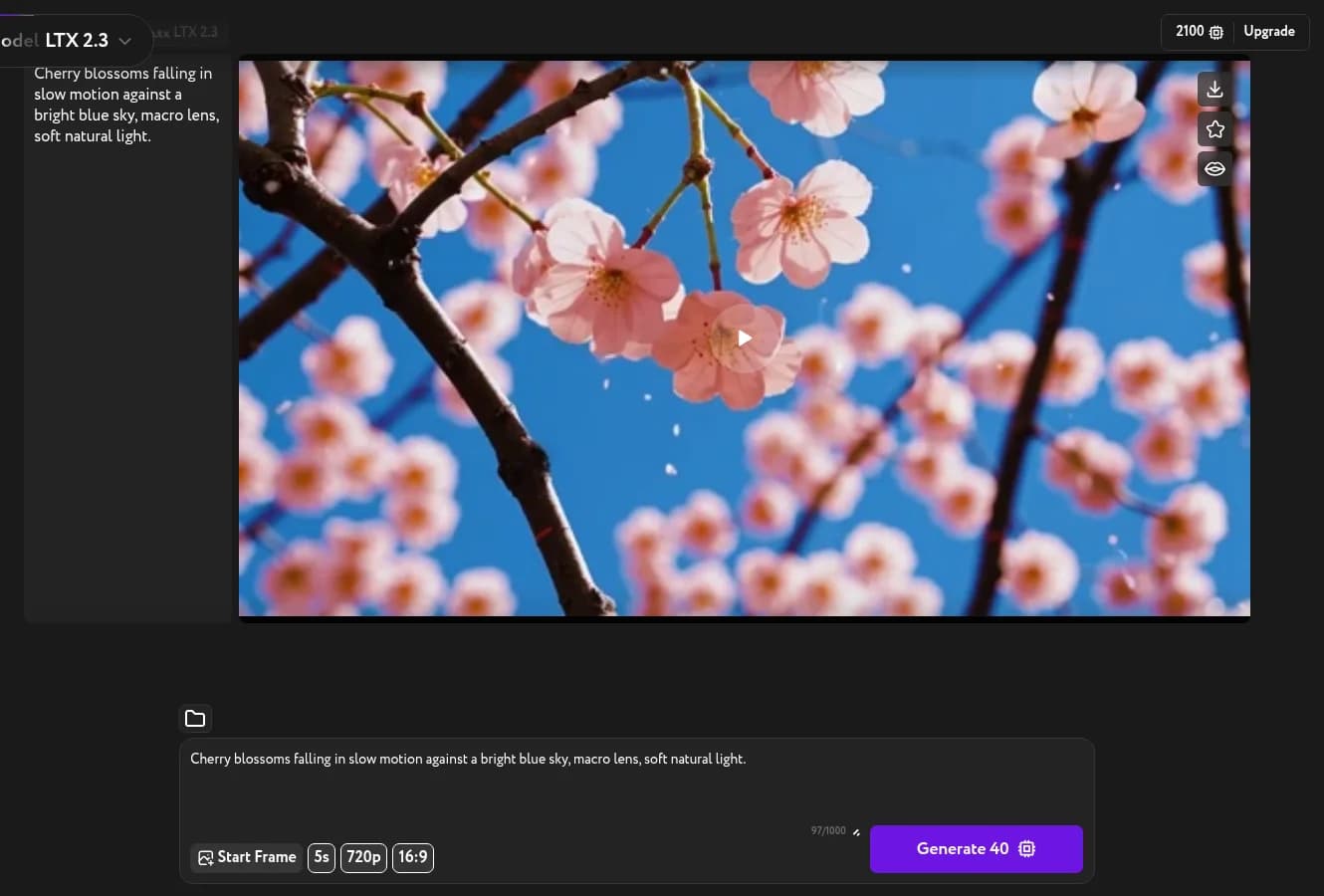
- Download (arrow icon) — saves the video to your computer.
- Add to favorites (star icon) — marks it in your generation history.
- Compose (circular icon) — opens Lip Sync with this video already loaded.