
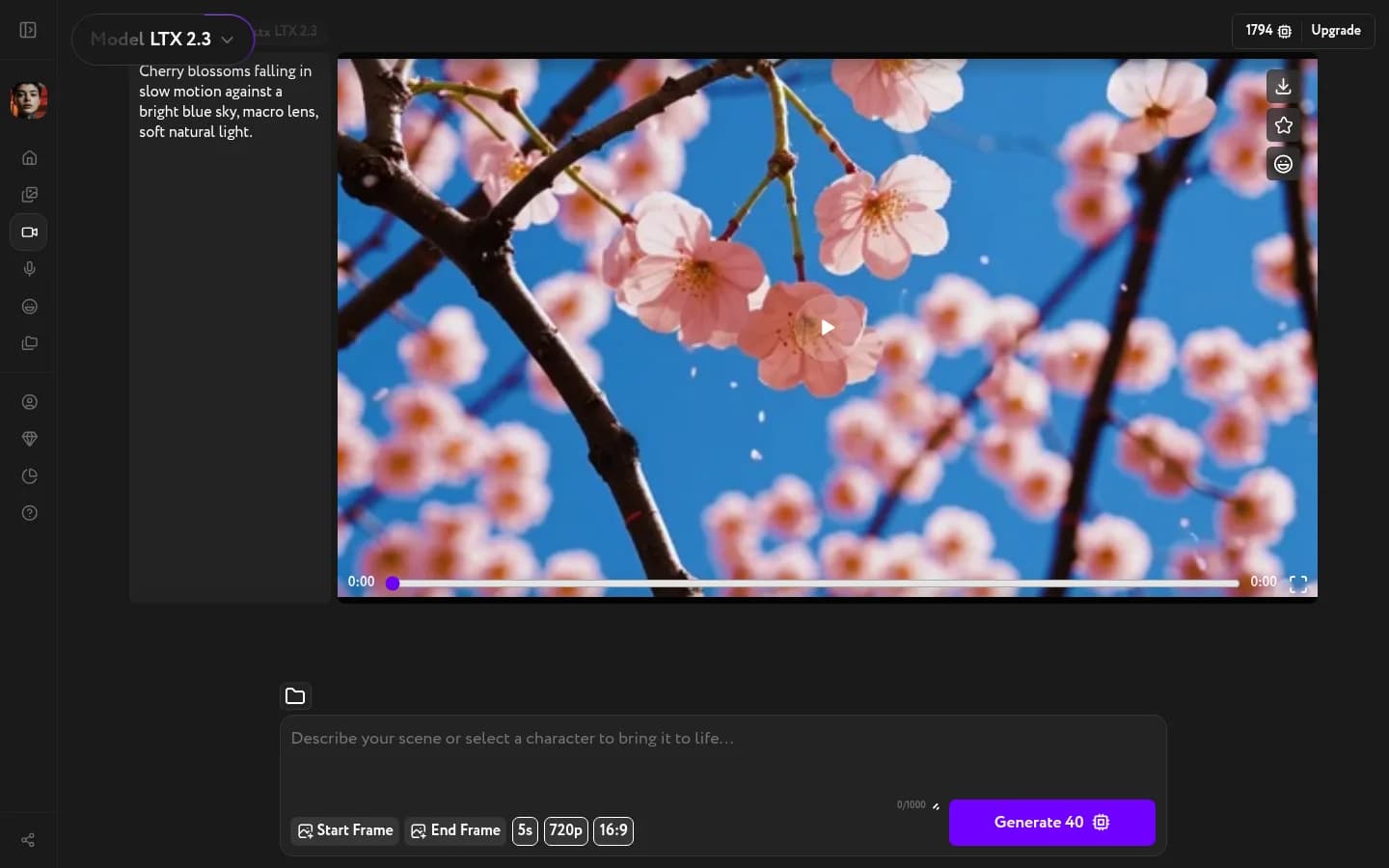
When generation finishes, three action buttons appear on the right side of the player. You can save it, star it for later, or send it directly to Lip Sync.
Download
Click the Download button (the arrow icon) to save the video file to your device.
Add to favorites
Click the Star button to add the video to your favorites.
Send to Lip Sync
Click the Compose button (the circular icon below the star) to send the video to Lip Sync. The video loads automatically as the video input — you only need to add a voiceover and click Generate. See Send a video to Lip Sync for the full workflow.
You can also start from a community preset — see Recreate a video from the home feed.
To sharpen your video after downloading, try Video Upscaler. To swap a face across every frame, see Video Face Swap. To add a soundtrack or sound effects, try Sound Design.