
Workroom's AI lip sync tool syncs a voiceover to a face in an existing video or photo. You pick a source file, attach a voiceover, and Workroom generates a new video with audio-driven lip movements.
Before you begin
You need two files:
- A source file — a video with a visible face (Lipsync Video Labs, Sync.co Lipsync) or a portrait photo (LTX Lipsync, Lipsync Image Labs). See Lip Sync models to choose the right model for your input.
- A voiceover — an audio recording. You can create one in Voice Generation.
Select your source
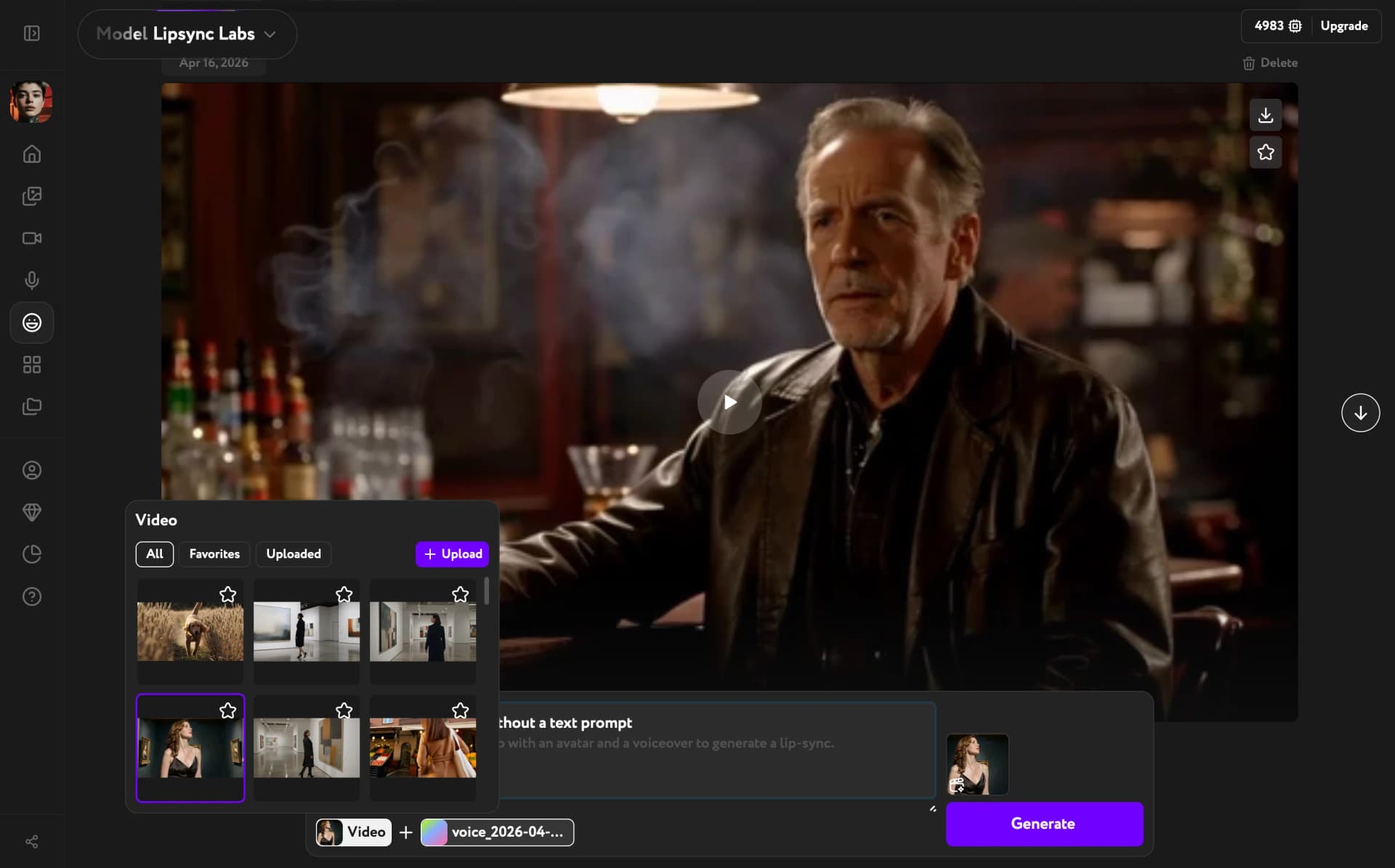
Click the Video button in the control bar (or Image if you're using LTX Lipsync or Lipsync Image Labs). A modal opens with three tabs: All, Favorites, and Uploaded. Click any thumbnail to select it, or use Upload new file to add a file.
Add a voiceover
Click the Voiceover button. The modal lists your saved voiceovers with a preview play button and duration display. Select one, or use Upload new file to add an audio file.
Generate
When both inputs are selected, the Generate button activates. Click it to start processing.
View your result
The generated video appears directly on the Lip Sync page. Use the playback controls to preview it. To generate again with different inputs, swap the video or voiceover and click Generate once more.