
Voice Generation is Workroom's text-to-speech tool — part of an AI workspace for video, image, and voice generation. Open the editor, pick a voice, type your script, and hit Generate.
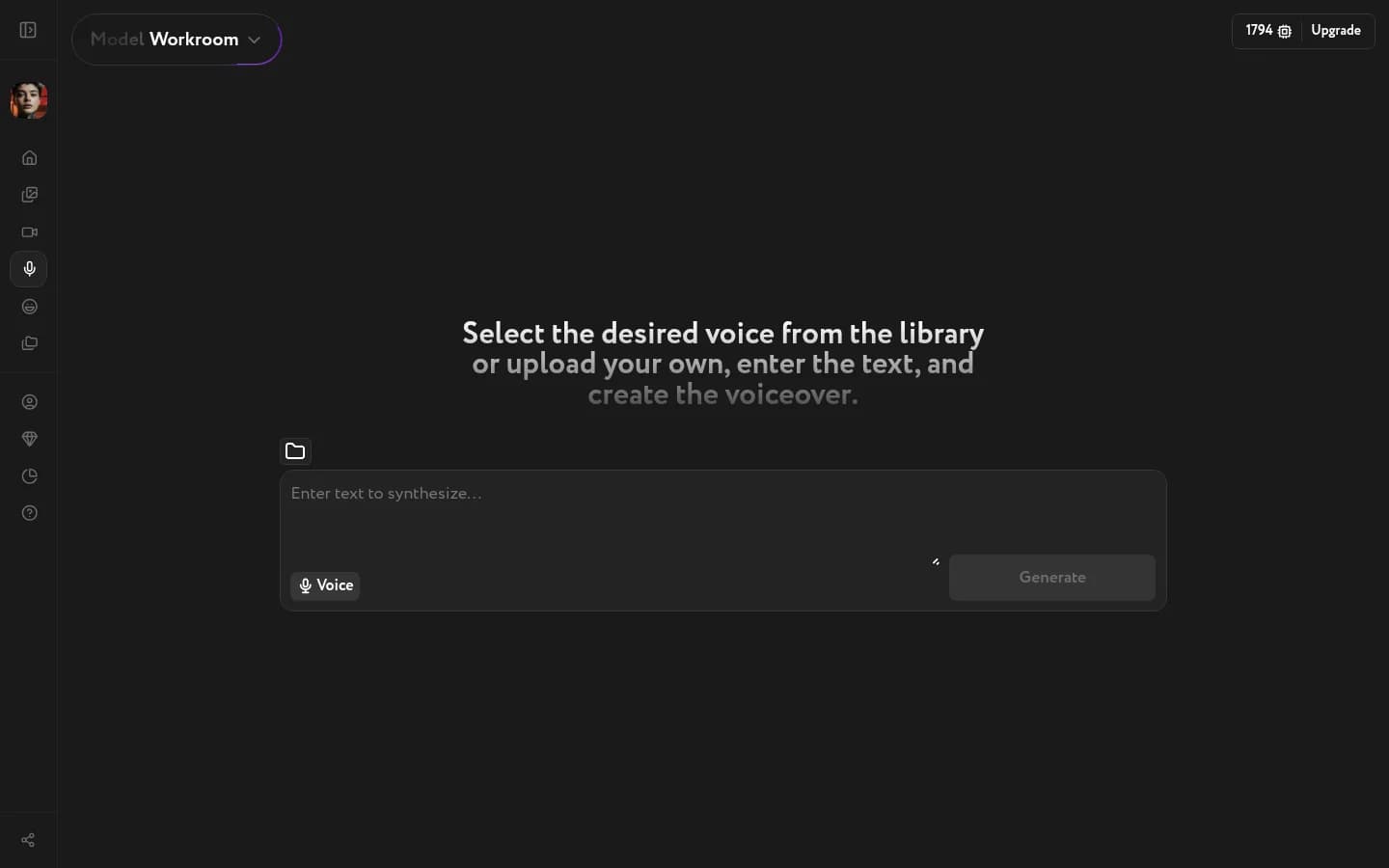
Open Voice Generation
Select a voice
Click the Voice button below the text area. The voice library opens on the Pre-made tab, showing all available voices for the current model.
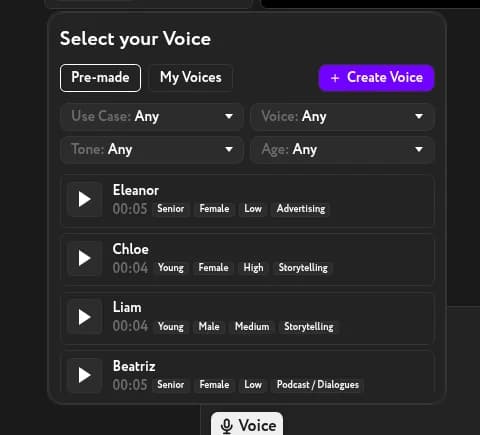
Use the four filters to narrow your search:
- Use Case — Advertising, Storytelling, Podcast / Dialogues, Meditation, Social Media, News, Narration, Character, Voiceover
- Tone — Low, Medium, High
- Age — Child, Teen, Young, Adult, Senior
- Voice — Male or Female
Each entry has a short audio preview. Click the play button next to a voice to hear it, then click the voice row to select it. The modal closes and the Voice button updates to show the selected name.
Write your script
Click the text area and type or paste the text you want to synthesize.
Generate
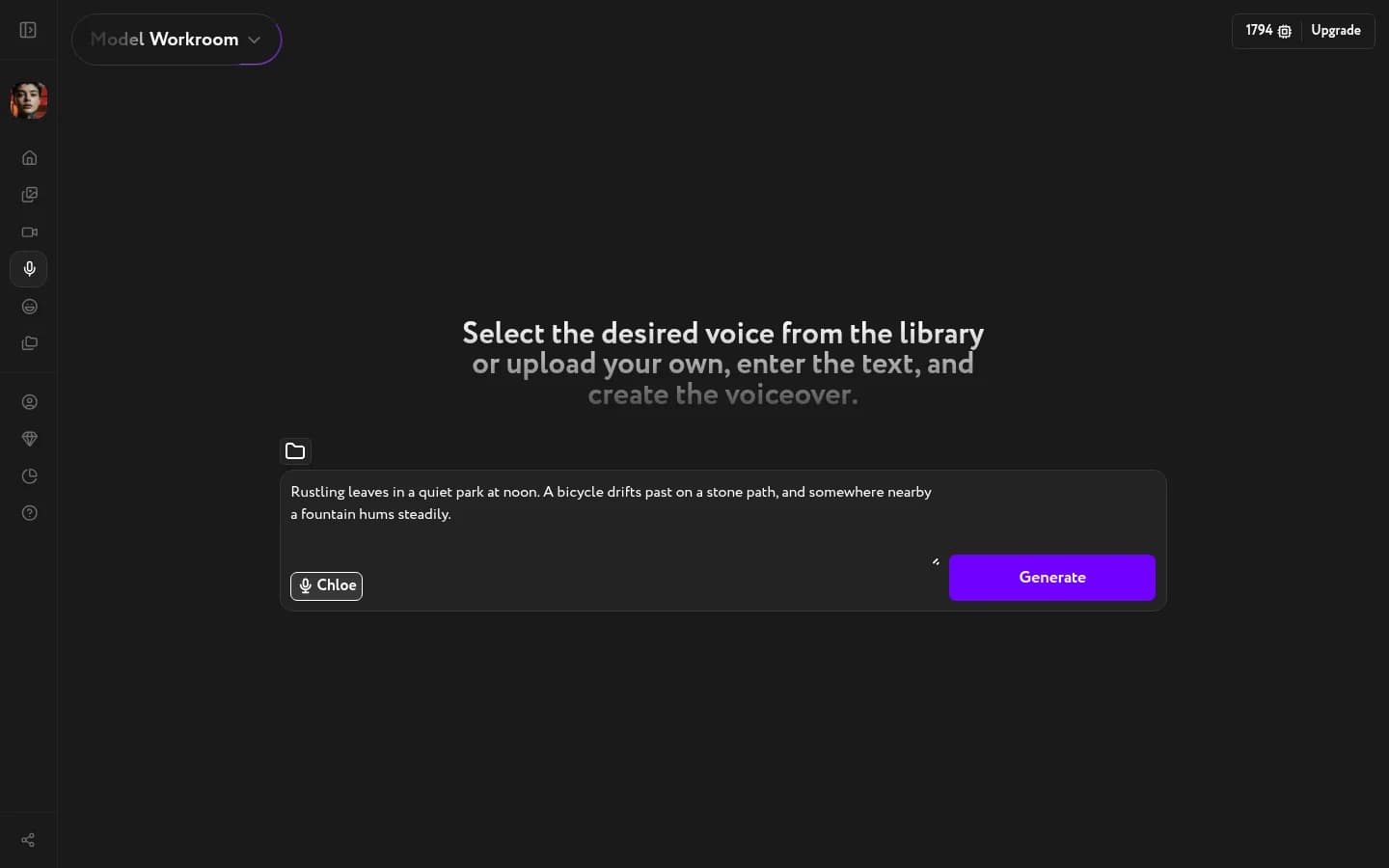
Once you have a voice selected and text entered, the Generate button becomes active. The button shows the credit cost — click it to start synthesis.
Generation typically completes in under a minute. You can leave the page and return — your result stays in the history panel.
Use your result
When synthesis is complete, the waveform appears in the main area.
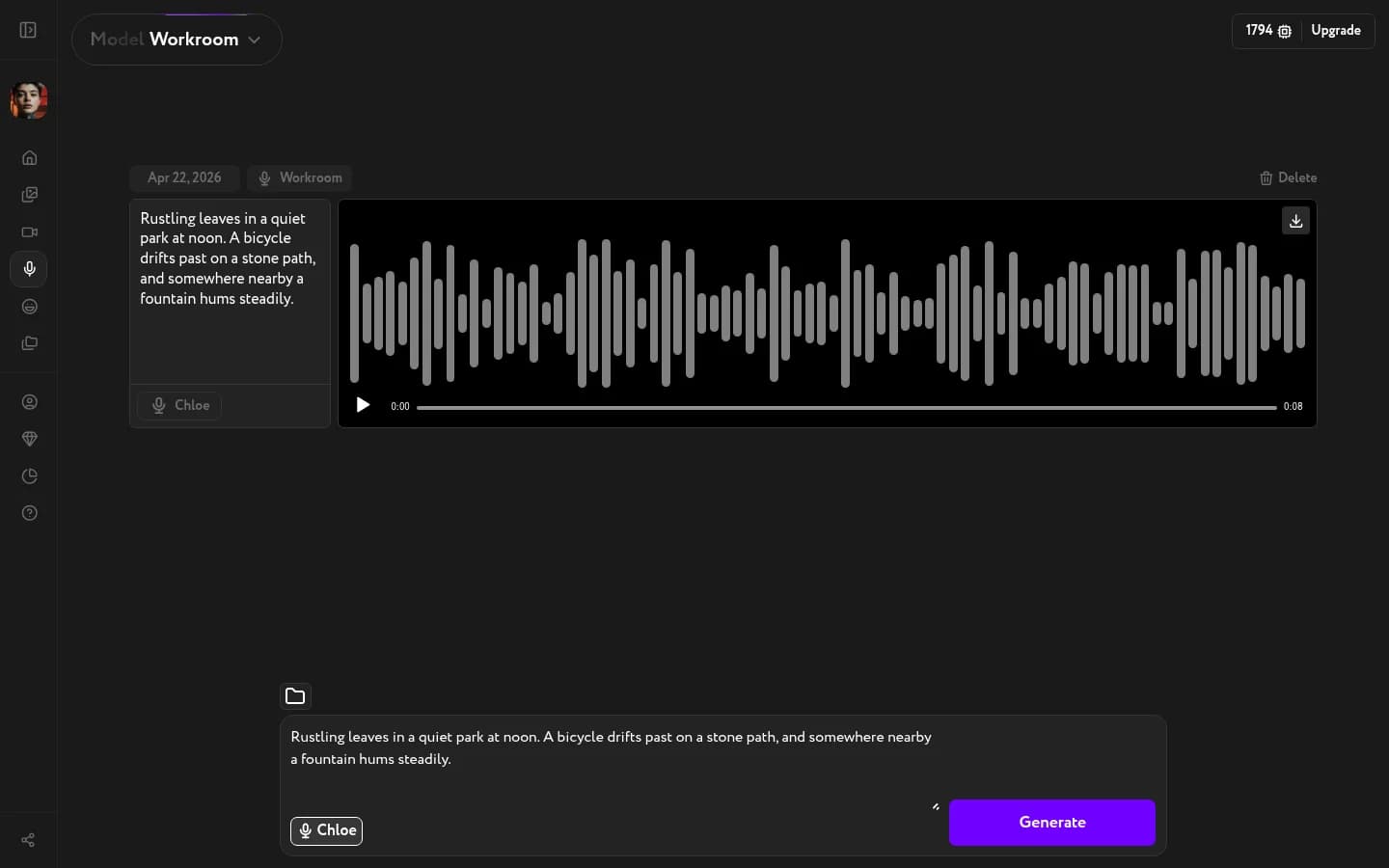
- Play — click the play button on the waveform to listen back
- Download — hover over the result to reveal the download button, then click to save the audio file
- Delete — click the Delete button in the top-right corner to remove the generation from history
Every voiceover is also automatically saved and accessible from the history panel.