
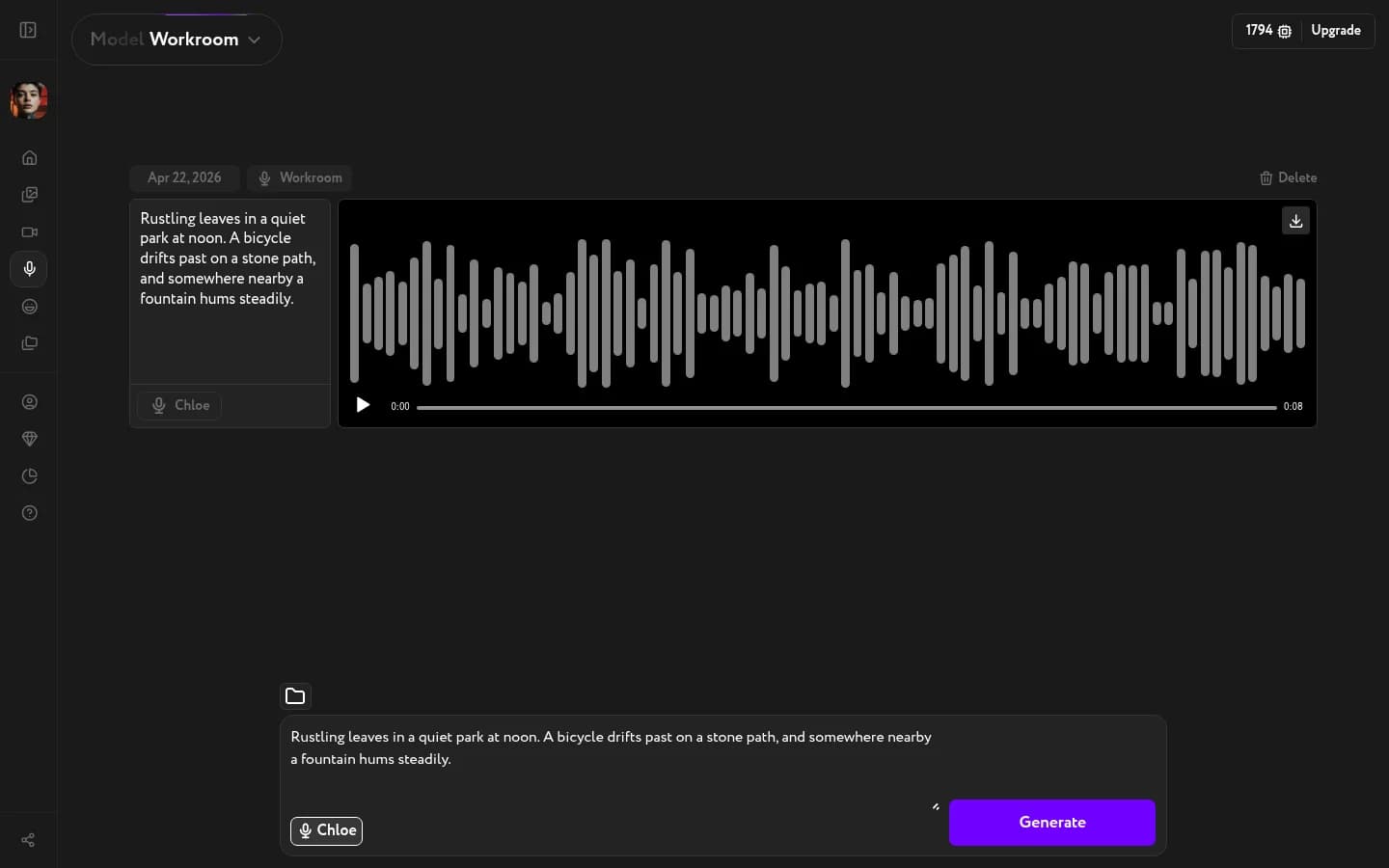
Once a text-to-speech generation finishes in Voice Generation, the result appears as an interactive waveform. You can play it back, download the audio file, or delete it.
Play back
Click the play button in the bottom-left corner of the waveform to listen to the result. A timeline slider shows the current position and the total duration. Click anywhere on the slider to jump to that point in the audio.
Download
Hover over the waveform area to reveal the download button — a downward arrow icon in the top-right corner of the player.
Click the download button to save the audio file to your device. The file downloads immediately.
Delete
Click the Delete button in the top-right corner of the result card to remove the generation from your history. Deletion is permanent — you cannot recover the audio file.
Generation history
Voice Generation stores every voiceover you generate in the history panel. Each entry shows the date and the model. The script text and voice name appear below. Click any entry to bring it back into the main player and access the play and download controls.