
Voice Generation supports custom text-to-speech voice cloning. Upload a short recording or record live in the browser. The result appears in your My Voices tab — ready to use in any voiceover the same way you use pre-made voices.
Open My Voices
Click the Voice button in the text area to open the voice library. The library shows three tabs: Pre-made, My Voices, and Create Voice. Switch to the My Voices tab to see voices you have created — it will be empty until you add one.
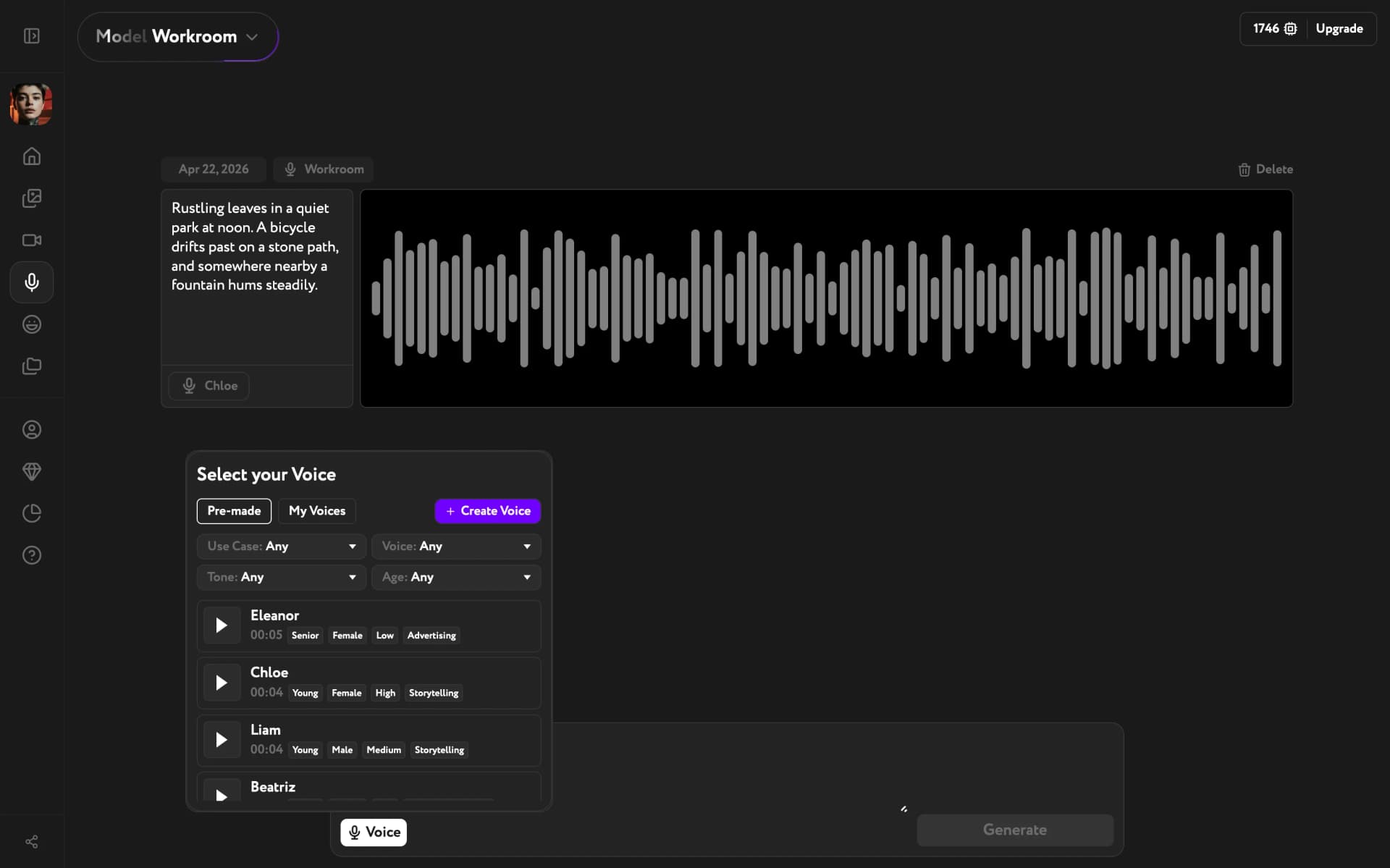
Click the Create Voice tab to open the creation dialog.
Choose your method
The Create a new voice sample dialog explains the process and offers two ways to add a recording.
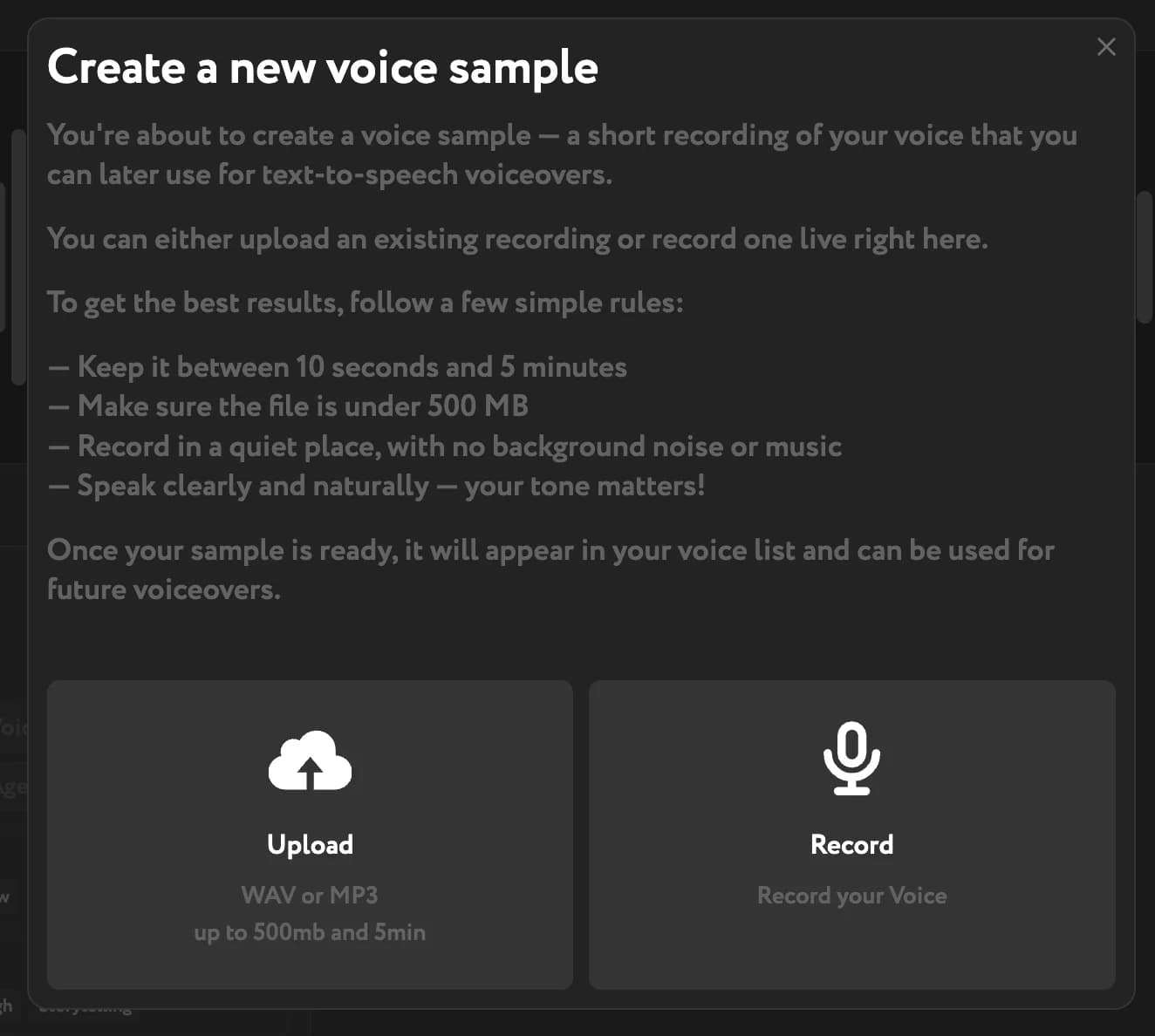
Before you start, keep these requirements in mind:
- Recording length: 10 seconds to 5 minutes
- File size: under 500 MB
- Environment: quiet room, no background noise or music
- Delivery: speak clearly and naturally
The quality of your sample directly affects how your cloned voice sounds in generated voiceovers.
Upload a recording
Click Upload to use an existing audio file. Accepted formats are WAV and MP3.
Select your file in the file picker. The upload starts automatically. Once processing is complete, your voice appears in the My Voices list.
Record live
Click Record to capture your voice directly in the browser. Workroom suggests a phrase to read aloud — this covers the full range of sounds and produces a better sample than improvised speech.
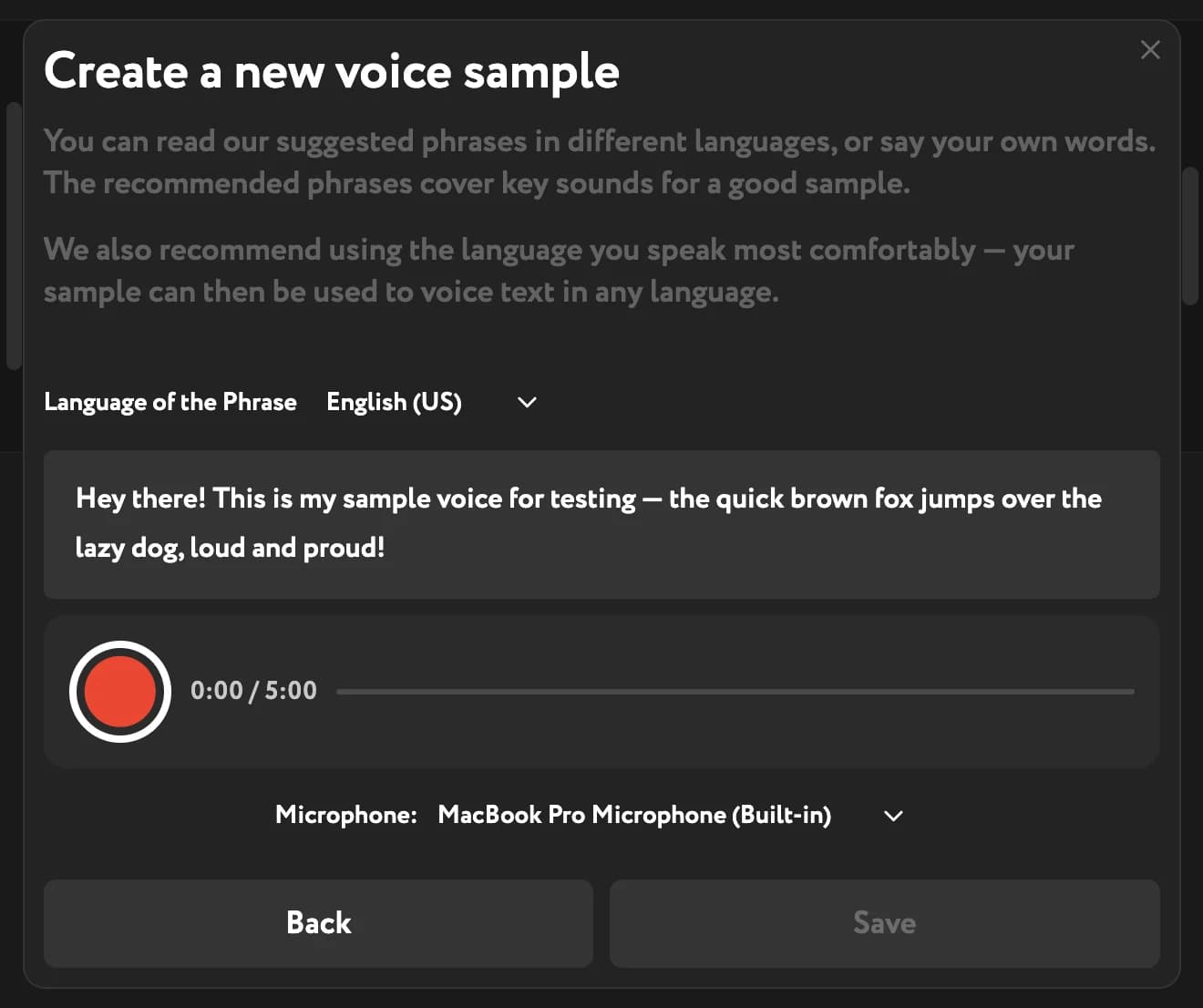
Select the Language of the Phrase to get a suggested phrase in that language. Allow microphone access in your browser and follow the on-screen steps.
Use your custom voice
After saving, your voice appears in the My Voices tab. Select it the same way you select any pre-made voice — click the row and the Voice button updates to show your voice name. From that point, every generation uses your custom voice until you change it.
Custom voices are tied to the model you created them under. A voice created in Workroom will not appear in the ElevenLabs voice library, and vice versa.