
Voice Generation lets you sort your AI voiceover results into folders before you generate them. This keeps results organized when you're working across multiple projects or producing batches of audio.
Open the folder panel
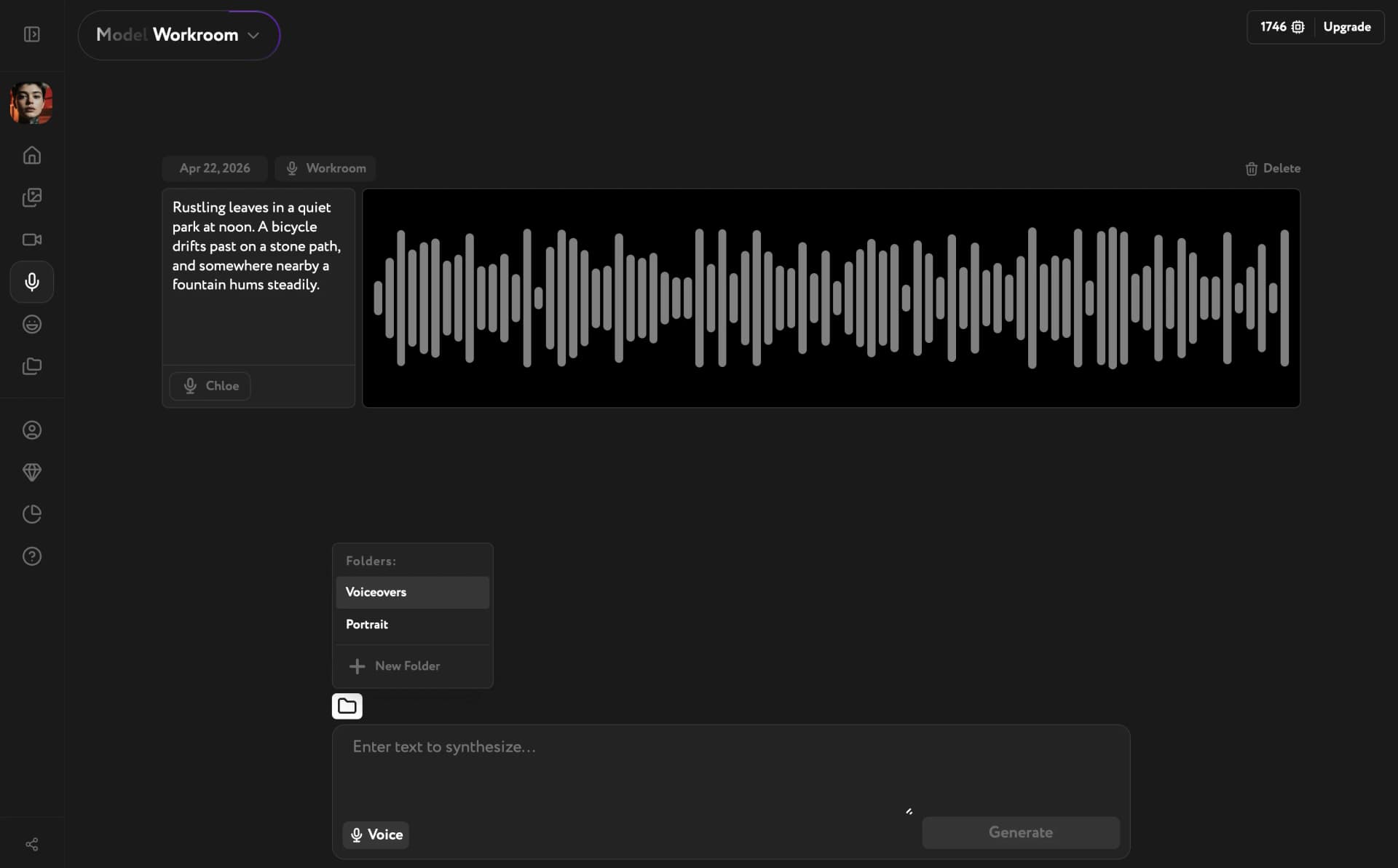
Click the folder icon in the bottom-left corner of the editor, just above the text area. A dropdown menu opens showing your existing folders and a + New Folder option.
Create a folder
Click + New Folder. A text input appears in the panel. Type a name for your folder and press Enter to confirm. The folder appears in the list immediately.
Assign a folder to a generation
After creating or selecting a folder, it becomes the active destination for your next voiceover. Generate as usual — the result is automatically filed into the selected folder.
To change the folder before generating, click the folder icon again and select a different folder from the list.