Folders keep your AI-generated images organized by project, shoot, or subject in Image Generation. Create and switch folders without leaving the generation view, and access all your folders from Assets.
Open the folder panel
Click the folder icon in the prompt bar (top-left of the prompt area). The panel opens showing your existing folders, or an empty state if you haven't created any yet.
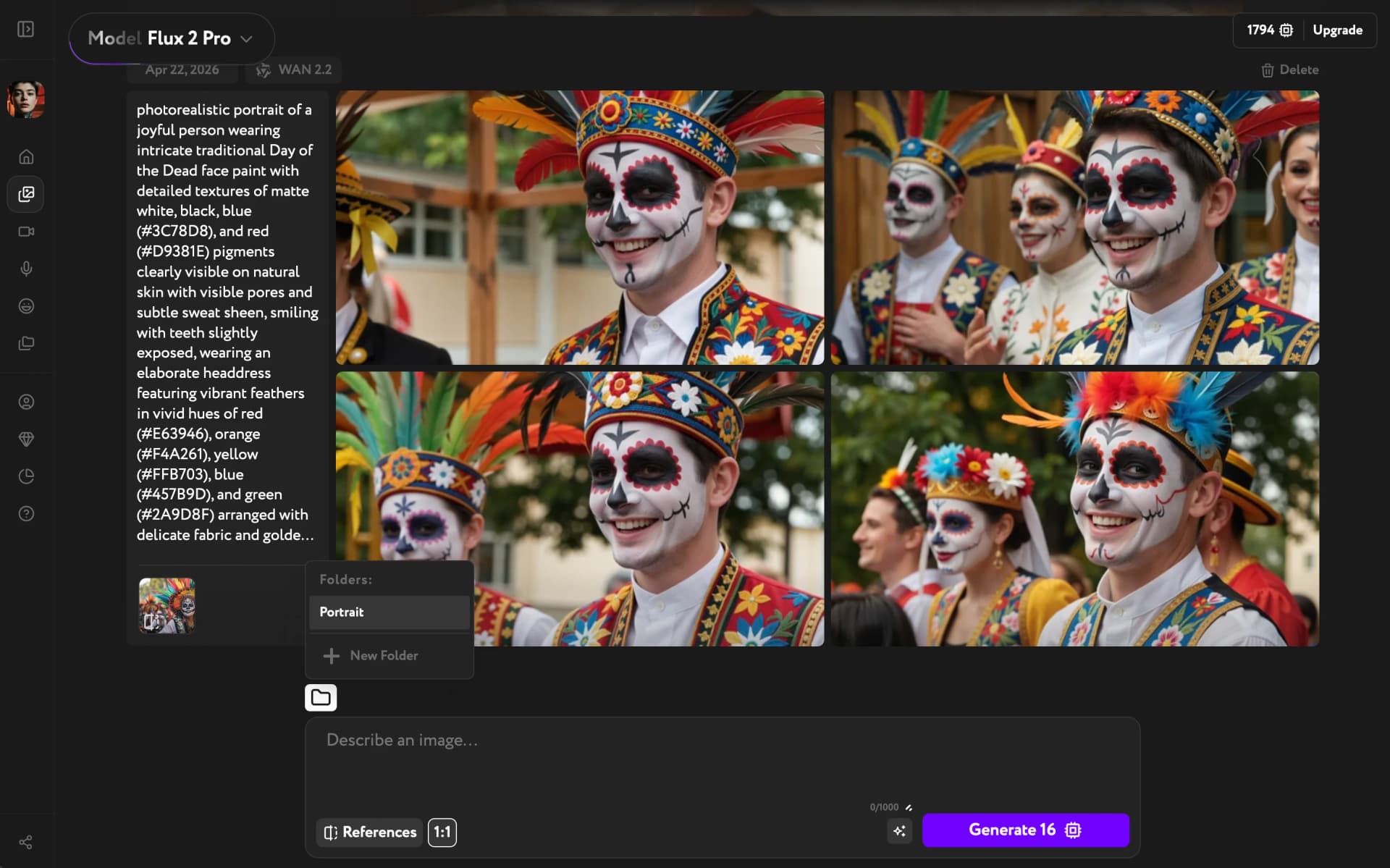
Create a folder
Click New Folder. A text input appears — type a name and press Enter to create it.
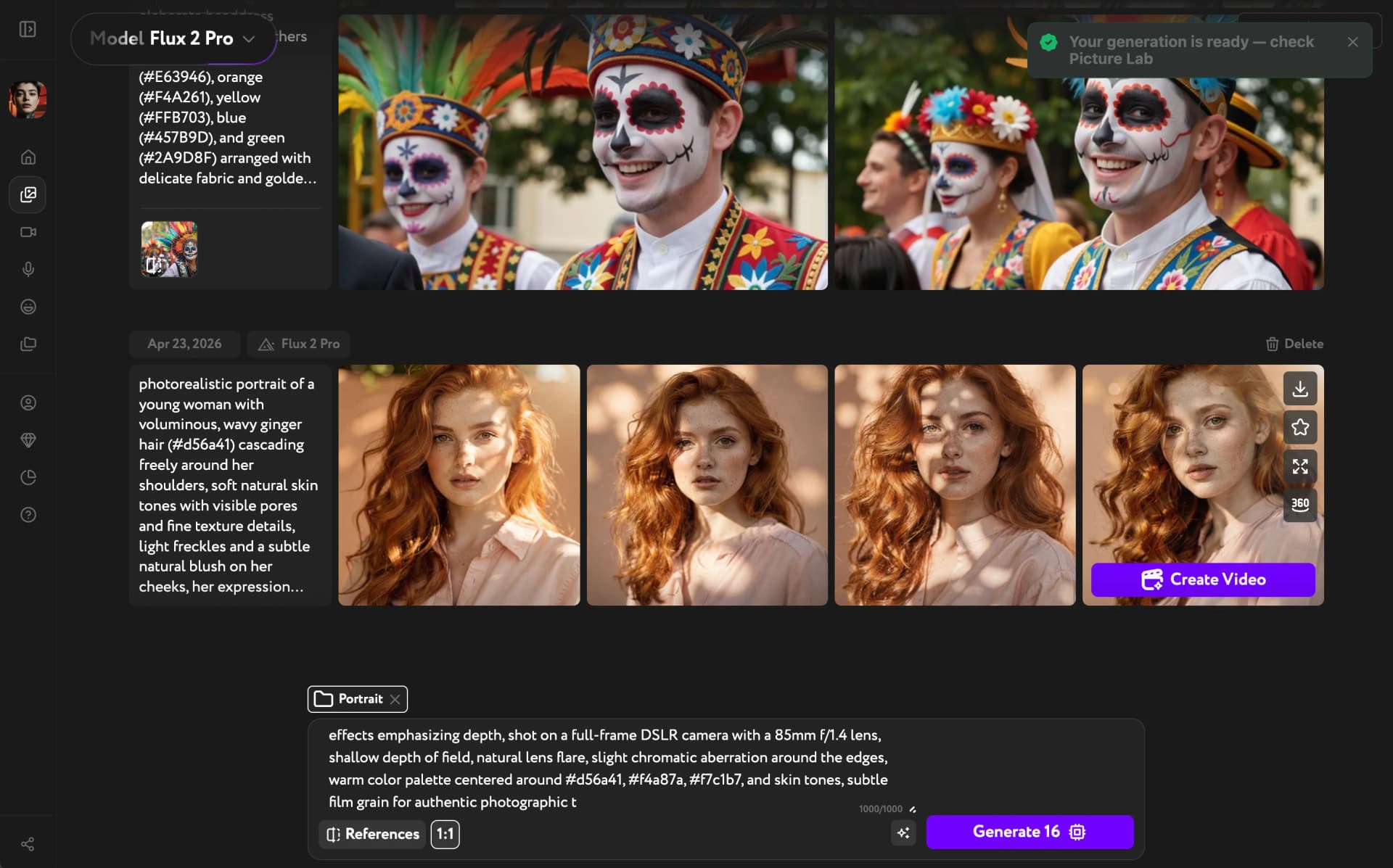
Select a folder
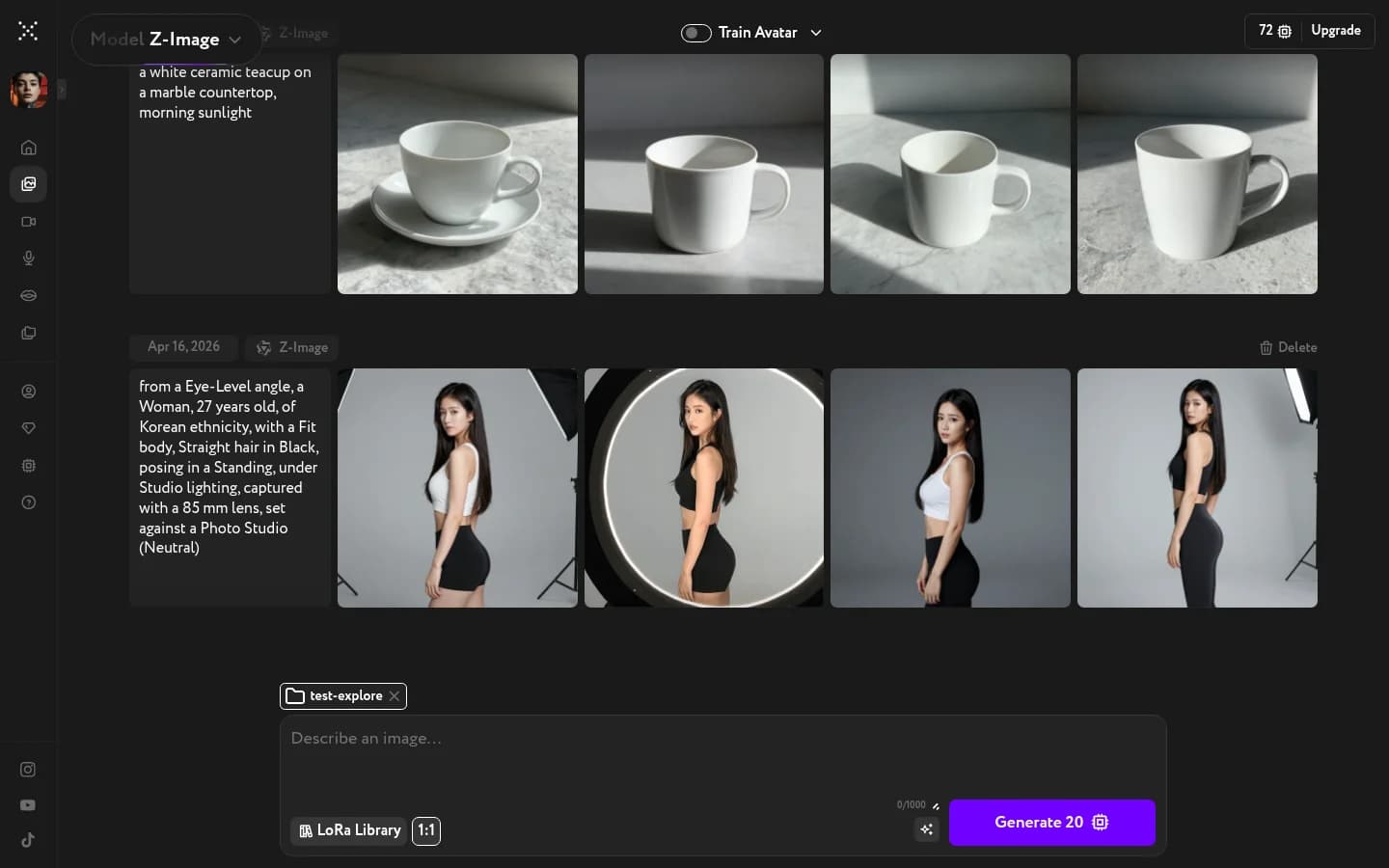
Click any folder in the panel to make it active. The active folder name appears in the prompt bar next to the folder icon — it stays selected until you switch to another folder or deselect it. All generations made while a folder is active are saved into it automatically.
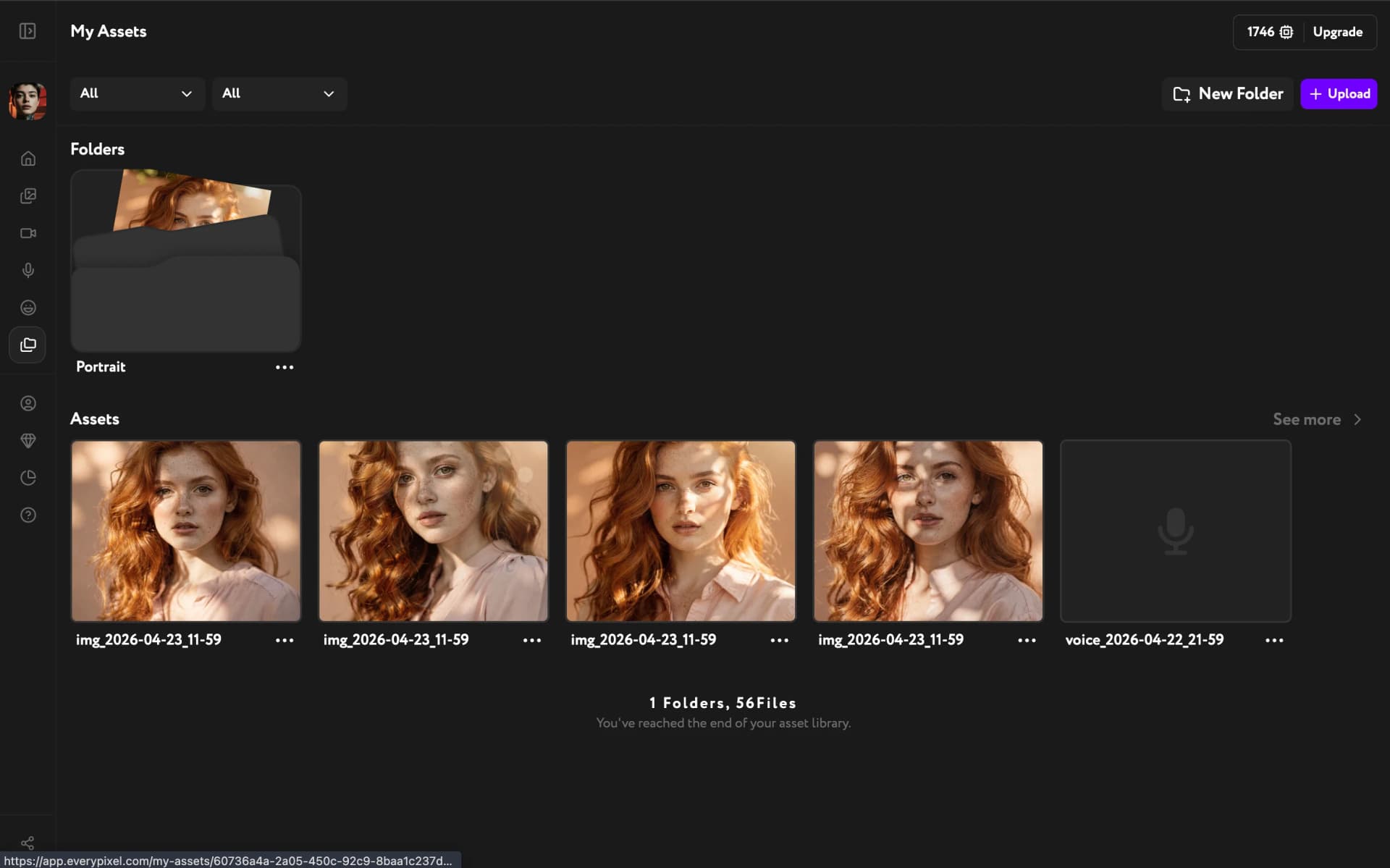
View folders in Assets
All your folders and generated images are accessible from Assets in the left sidebar. The Folders section shows folder thumbnails; below it, individual assets are listed.