
After generating a video in Video Generation, you can send it directly to Lip Sync using the Compose button. The video loads automatically as the input for AI lip sync — no re-upload needed.
Send to Lip Sync
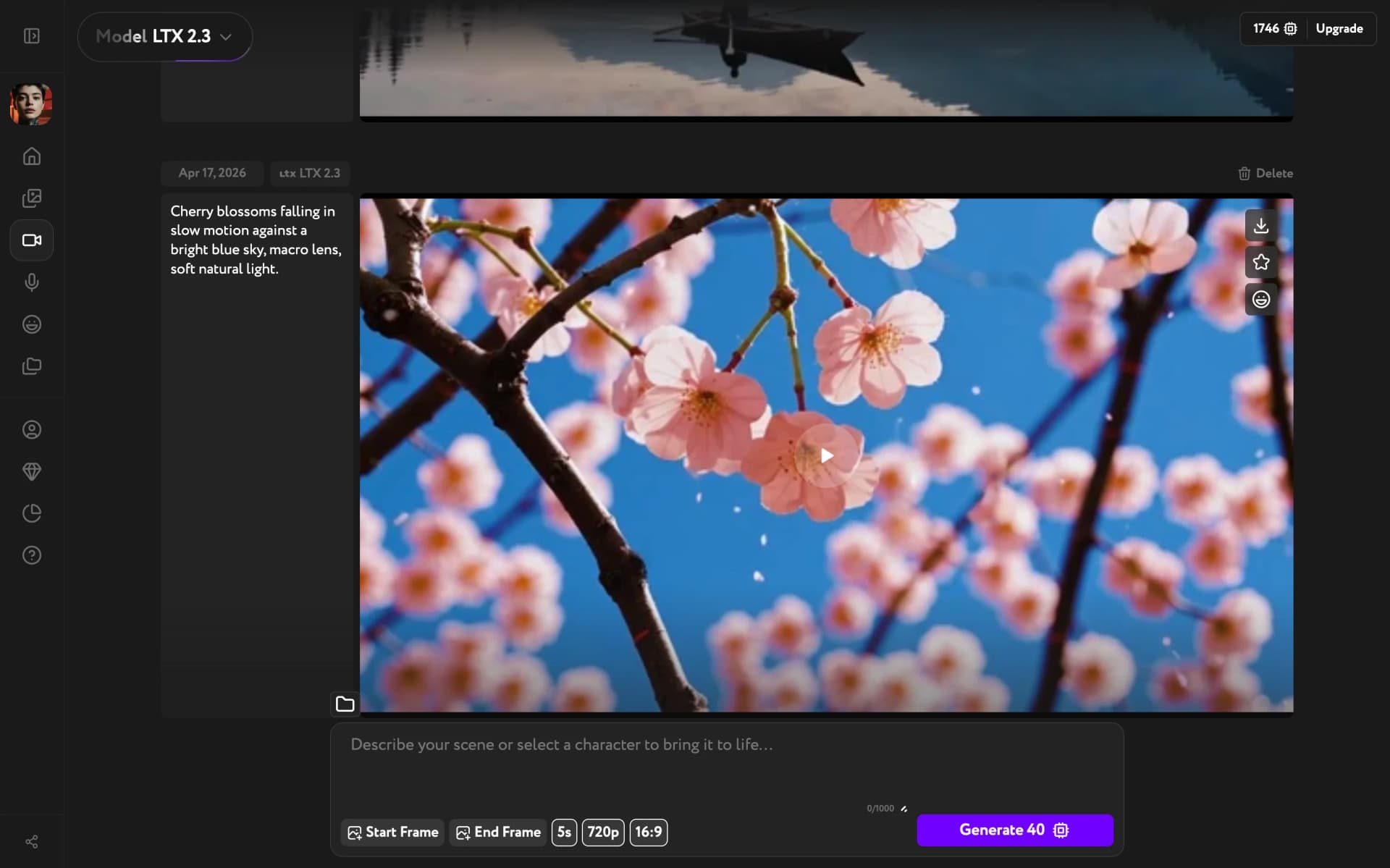
Generate a video in Video Generation. Once the video appears in the player, click the Compose button. Lip Sync opens immediately.
Add a voiceover and generate
Lip Sync opens with your video already loaded in the Video slot. The model is set to LTX Lipsync by default.
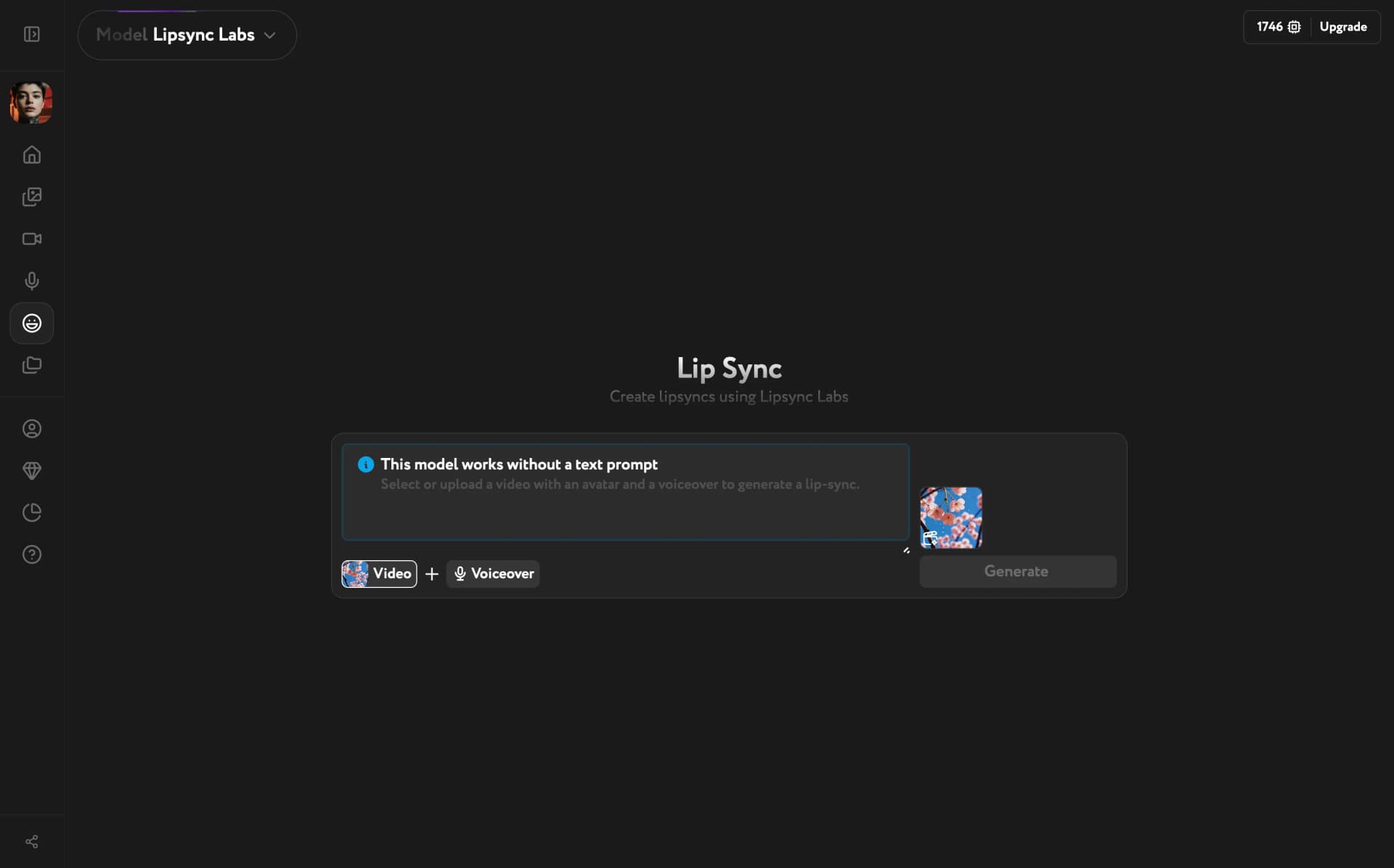
Click Voiceover to add audio — you can upload an audio file or record a voiceover directly. Once both Video and Voiceover are set, click Generate to produce the lip-sync video.
Lip Sync works best with videos that show a clear face. Abstract or landscape videos like the example above will process but may not produce meaningful lip movement.
When to use this
Use this when you've generated a character video in Video Generation and want to add speech. The direct transfer keeps the workflow continuous.
For more options when creating lip-sync videos, see Create a lip-sync video.