
The home feed shows video presets generated by the Workroom community. Each video preset has a Recreate button that opens Video Generation with the same model and prompt already loaded — so you can start AI video generation from any preset you like.
Find a video preset
Go to the home page. The feed shows a mix of image and video presets. Use the model filter tabs at the top to narrow down to video models (Kling 3.0, LTX 2.3, Veo 3.1, WAN 2.6, and others). Hover over a video preset card to reveal the Recreate button.
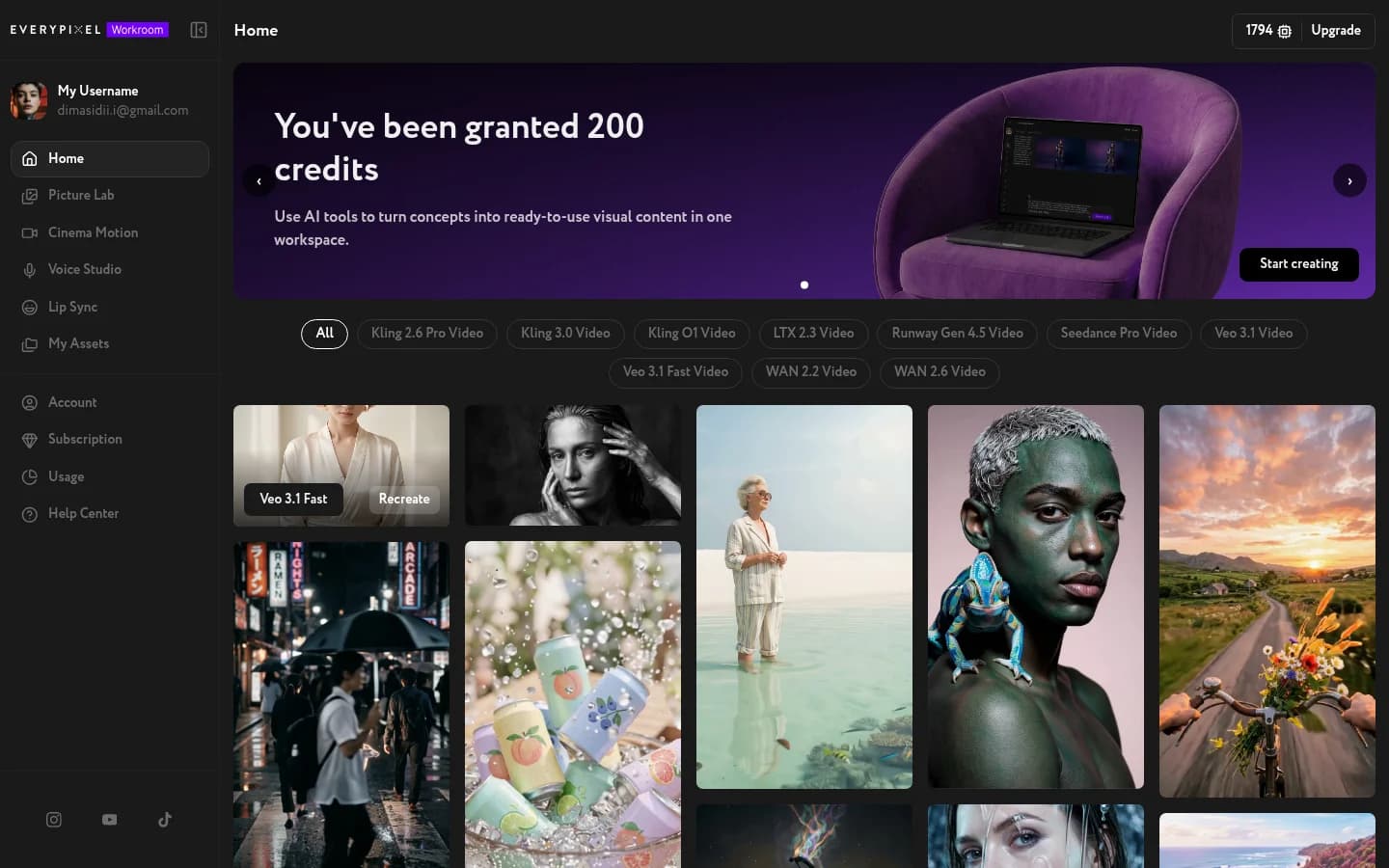
Click Recreate
Click Recreate. Video Generation opens with the prompt from that preset already in the text field, and the model set to match the original generation — for example, Runway Gen-4.5 or Veo 3.1 Fast.
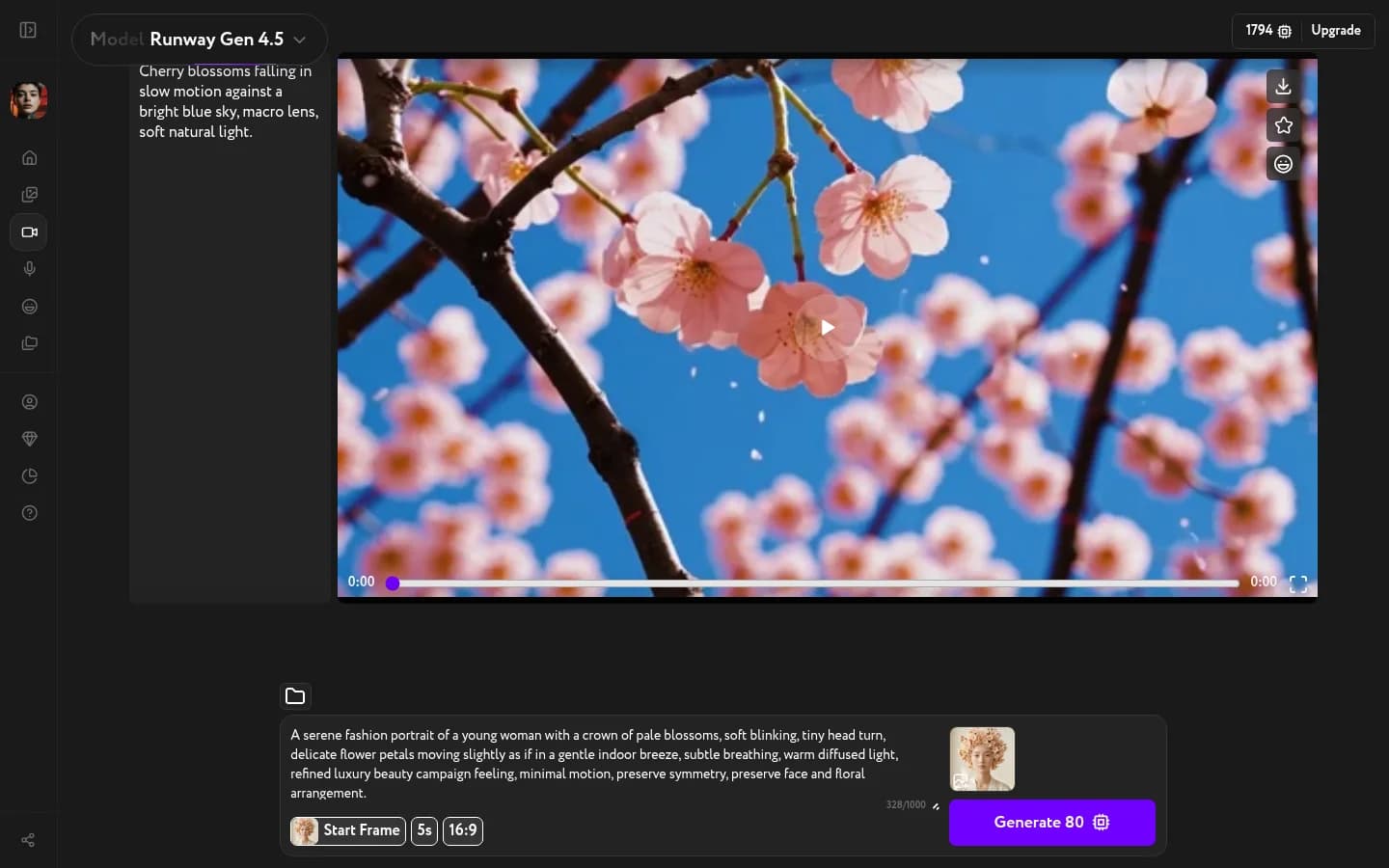
The settings (duration, resolution, aspect ratio) load with the defaults for that model. Review the prompt, adjust any settings, and click Generate to create your own version.
Why use Recreate
The prompt gives you a starting point — edit it, change the model, or adjust settings before generating.