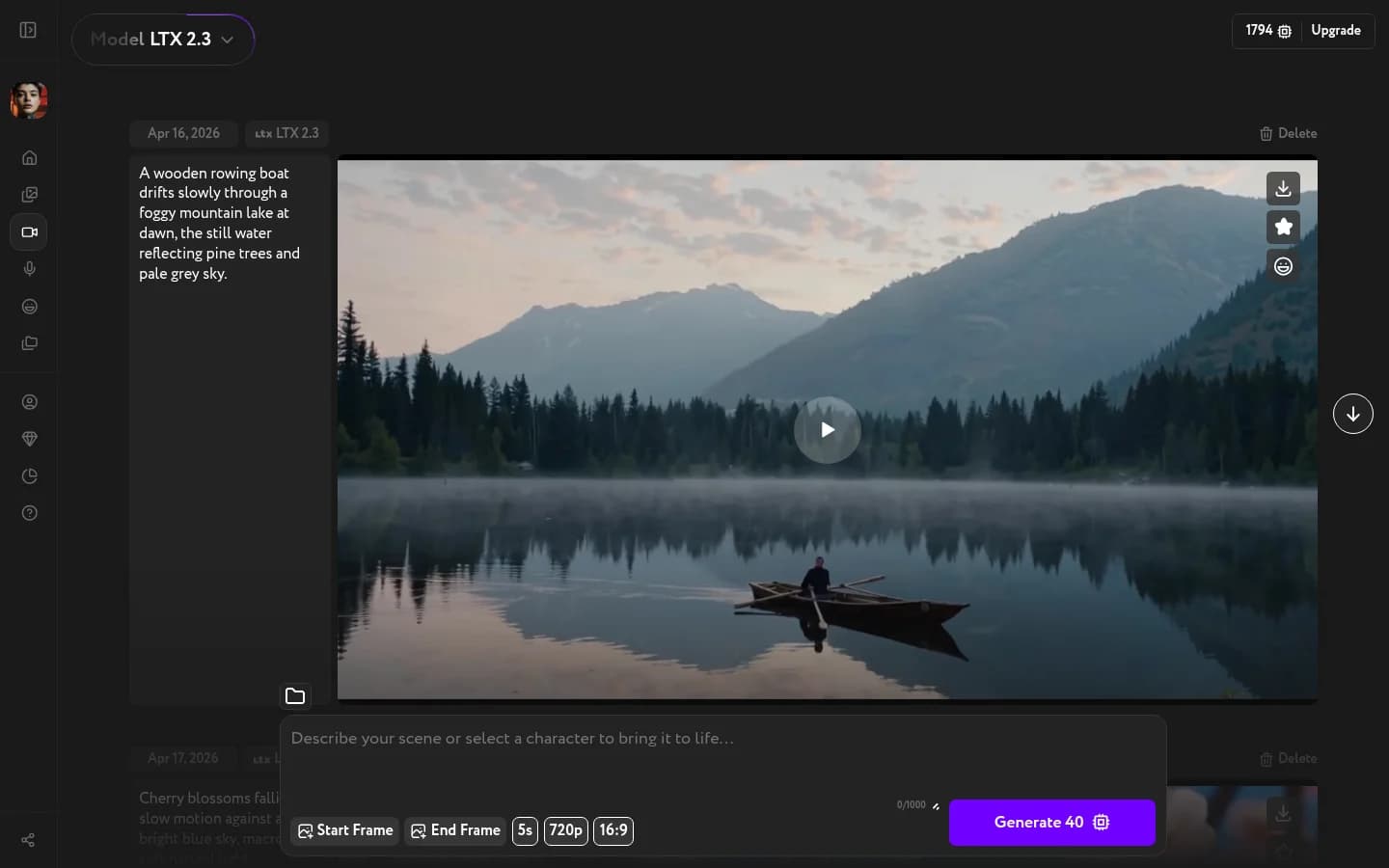
Video Generation is Workroom's text-to-video tool. A control bar below the prompt lets you set duration, resolution, aspect ratio, and more. Most controls appear across all models; a few are model-specific.
Start Frame
Start Frame anchors the opening shot of your video to a specific image. Click it to open the image panel.
Upload any image or pick one from your previously uploaded files. The model will use it as the first frame and animate from there. Leave Start Frame empty to generate entirely from your prompt.
End Frame
End Frame anchors the closing shot of your video to a specific image. Click it to open the same image panel as Start Frame. The model will generate a smooth transition between your start and end images.
Leave End Frame empty to let the model decide how the video ends.
Duration
The duration selector controls how long your video will be. The default is 5 seconds. You can extend it via the slider — longer videos cost more credits.
Resolution
The resolution dropdown sets the output quality. Available options depend on the model — from 720p up to 1080p or 4K on some models. Lower resolution generates faster and costs fewer credits.
Aspect ratio
Three options: 16:9 (landscape, default), 9:16 (vertical, for mobile or social), 1:1 (square). When you attach a Start Frame image, the aspect ratio may lock to match the uploaded image's proportions.
Audio toggle
Veo 3, Veo 3 Fast, Veo 3.1, Veo 3.1 Fast, Kling 3.0, and Kling 2.6 Pro can generate audio alongside the video — music, ambient sound, or speech. When you select one of these models, an Audio toggle appears in the control bar.
Audio output follows your prompt — describe sound explicitly ("gentle rain", "crowd cheering") to get accurate results.
WAN 2.6 — Video mode and multi-shot
WAN 2.6 adds two controls that other models do not have:
Video mode — switches the input from text-only to image-to-video. Click it to attach a reference video as the starting point.
Single / Multi-shot — Multi-shot mode generates a sequence of connected shots from a single prompt. Use it for longer or scene-based narratives.