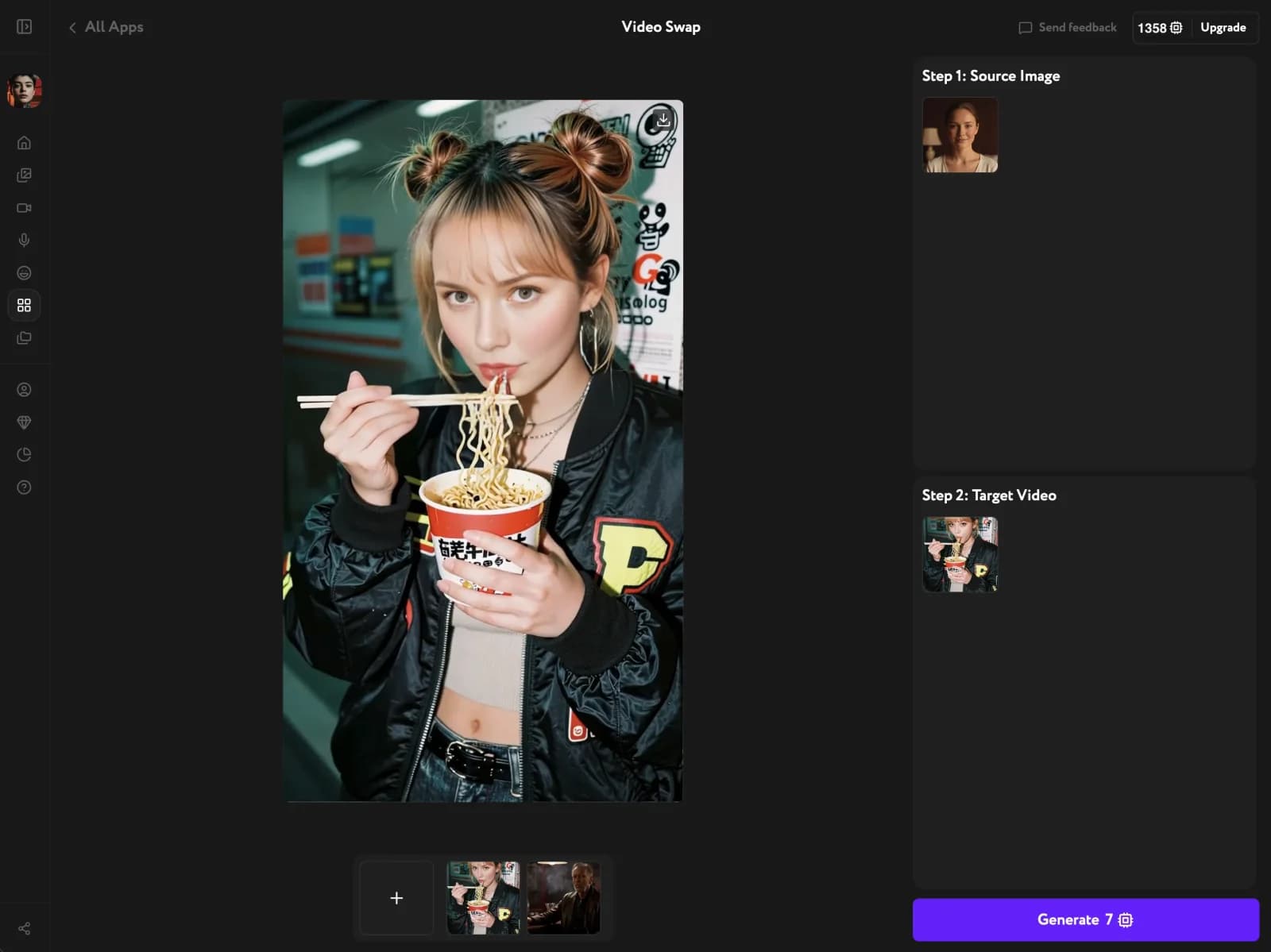
Video Face Swap — Workroom's AI face swap app — transfers a single photo's face onto every frame of a target video. It keeps the source hairstyle, head shape, and proportions. The face adopts the target's expressions and lighting, so it sits naturally in the scene. Identity stays locked from the first frame to the last.
Open Video Face Swap
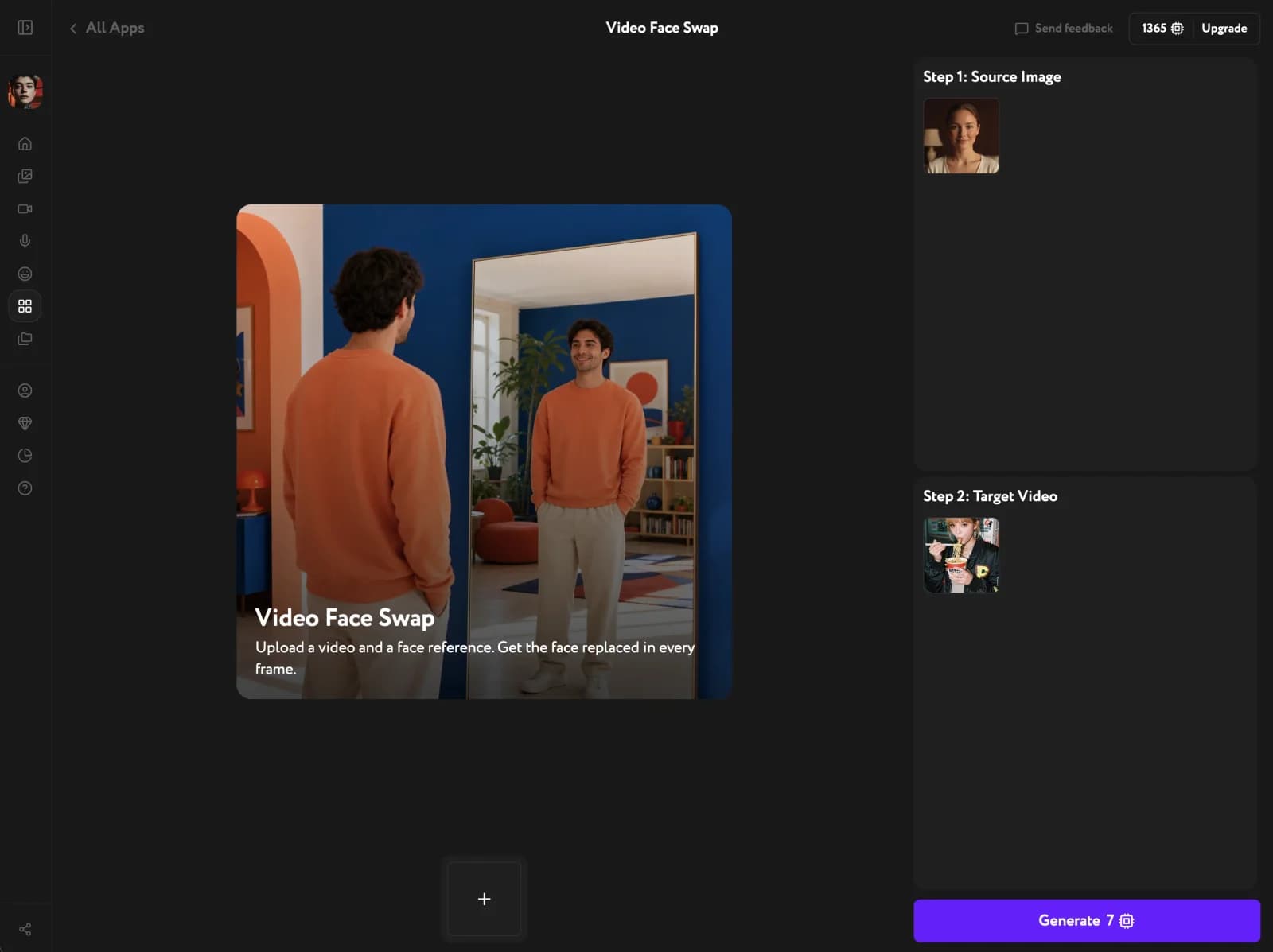
Open Apps from the sidebar and click Video Face Swap. Two input slots appear — Step 1 for the source face and Step 2 for the target video.
Add the source face and target video
Under Step 1: Source Image, upload a single clear, front-facing photo of the face you want to use. Under Step 2: Target Video, add your target video. Upload a file or pick one from your library. A flat, evenly lit portrait and steady target framing give the cleanest transfer.
Generate and download the video
Click Generate. The face is transferred frame by frame, tracking motion and expression so the identity holds throughout. Preview the finished video, then download it.