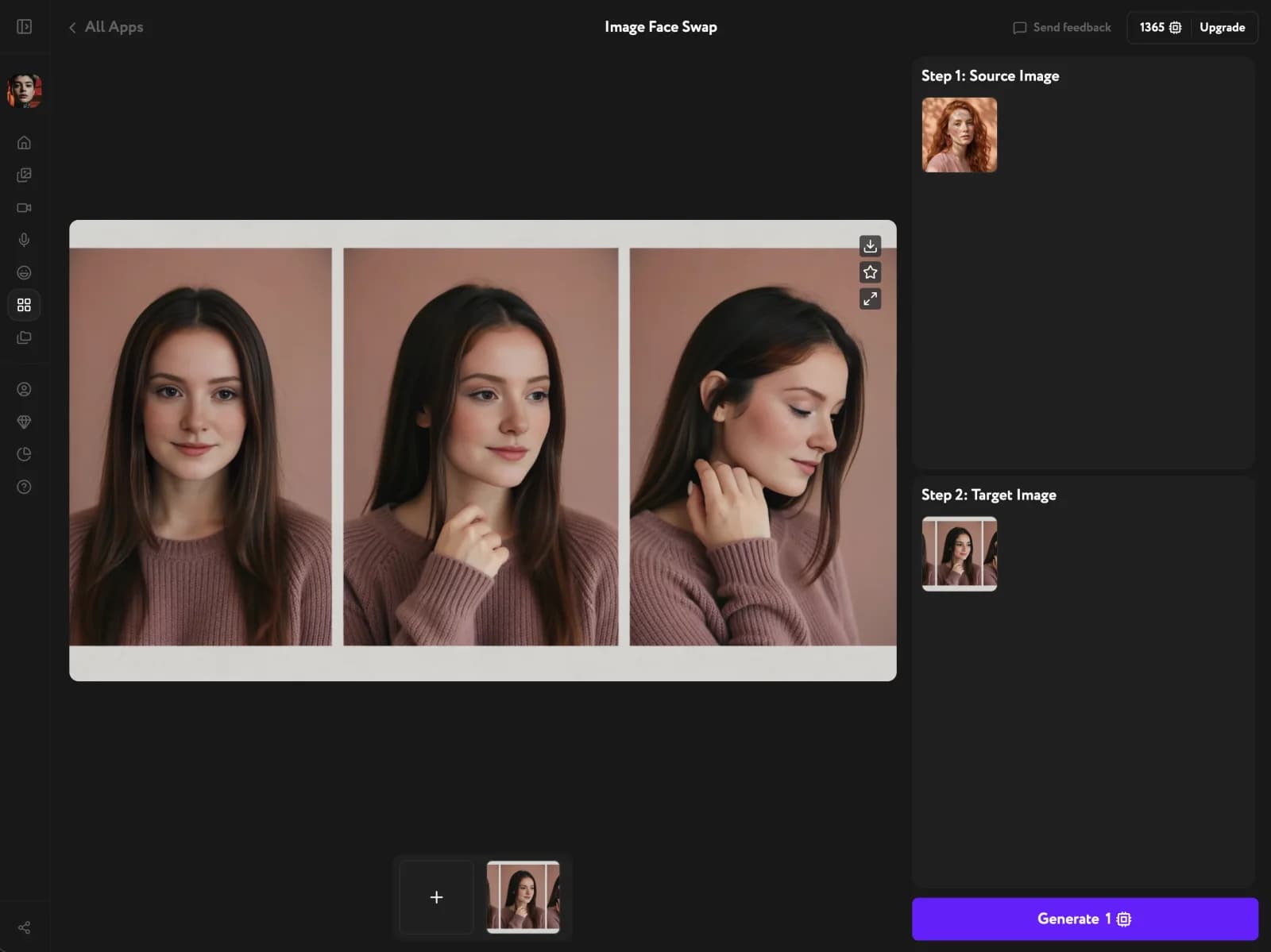
Image Face Swap is Workroom's AI face swap tool — it replaces the face in a photo with one from a reference, rebuilding it into the scene instead of pasting a flat cutout on top. It keeps the original head's hairstyle and proportions. The result reads as one person with no visible seam. It works on AI-generated images, real photos, and campaign shots alike.
Open Image Face Swap
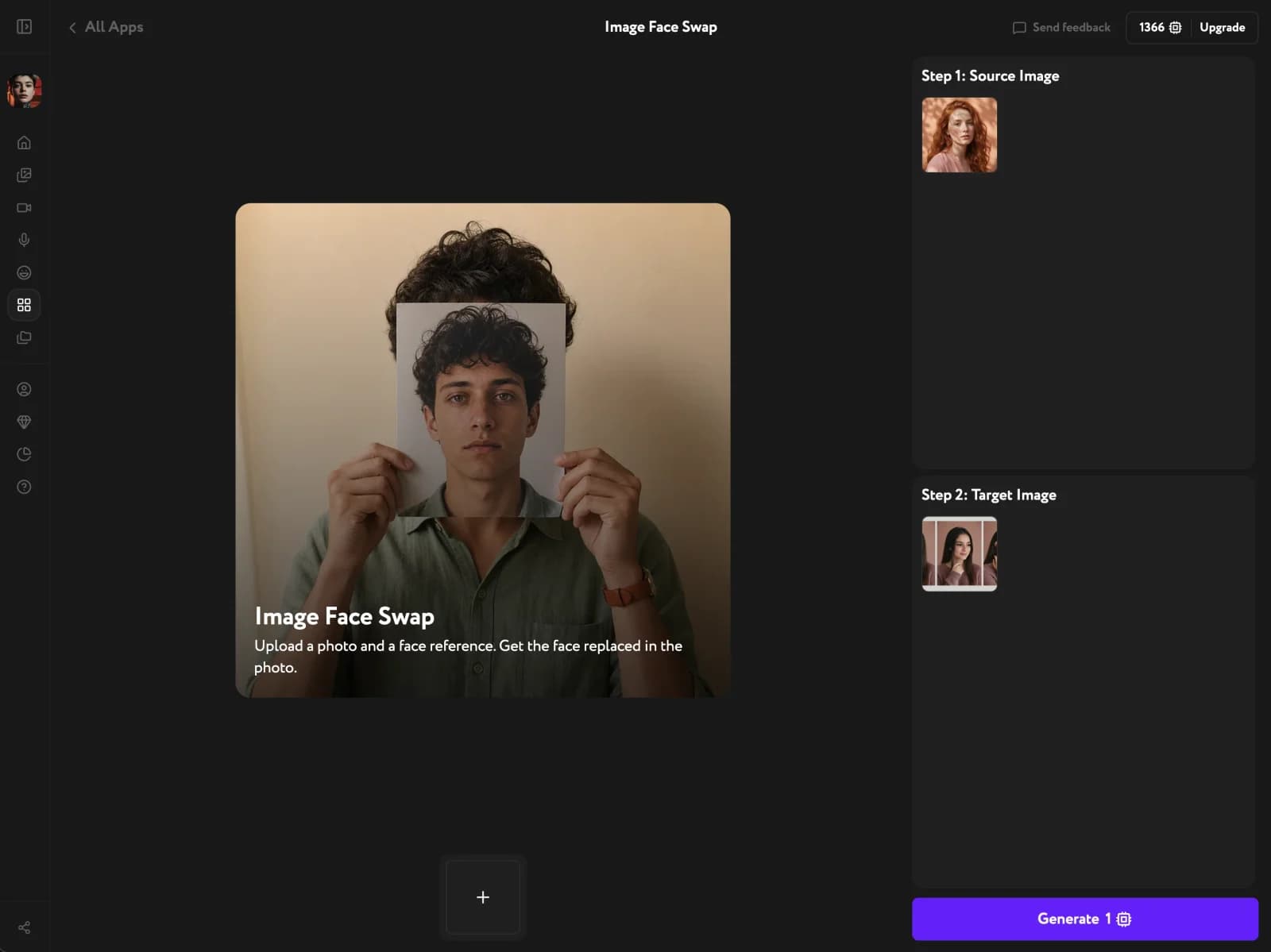
Open Apps from the sidebar and click Image Face Swap. The tool opens with two input slots — Step 1 for the source face, Step 2 for the photo you want to put it into.
Add the source face and target photo
Under Step 1: Source Image, upload a clear photo of the face you want to bring in — the model reads its identity, not its lighting or background. Under Step 2: Target Image, add the photo where the new face should live. The target keeps its pose, hair, and scene.
Generate and download the swap
Click Generate. Image Face Swap relights the face, fits it to the target's head, and blends it with no hard edges. Review the result and download it.