In Image Generation, Workroom's AI image tool, a reference image gives the model a visual starting point. Instead of generating from the text prompt alone, it builds on the composition, lighting, or style of the image you provide. Your prompt is then applied as a transformation on top of that.
Attach a reference image
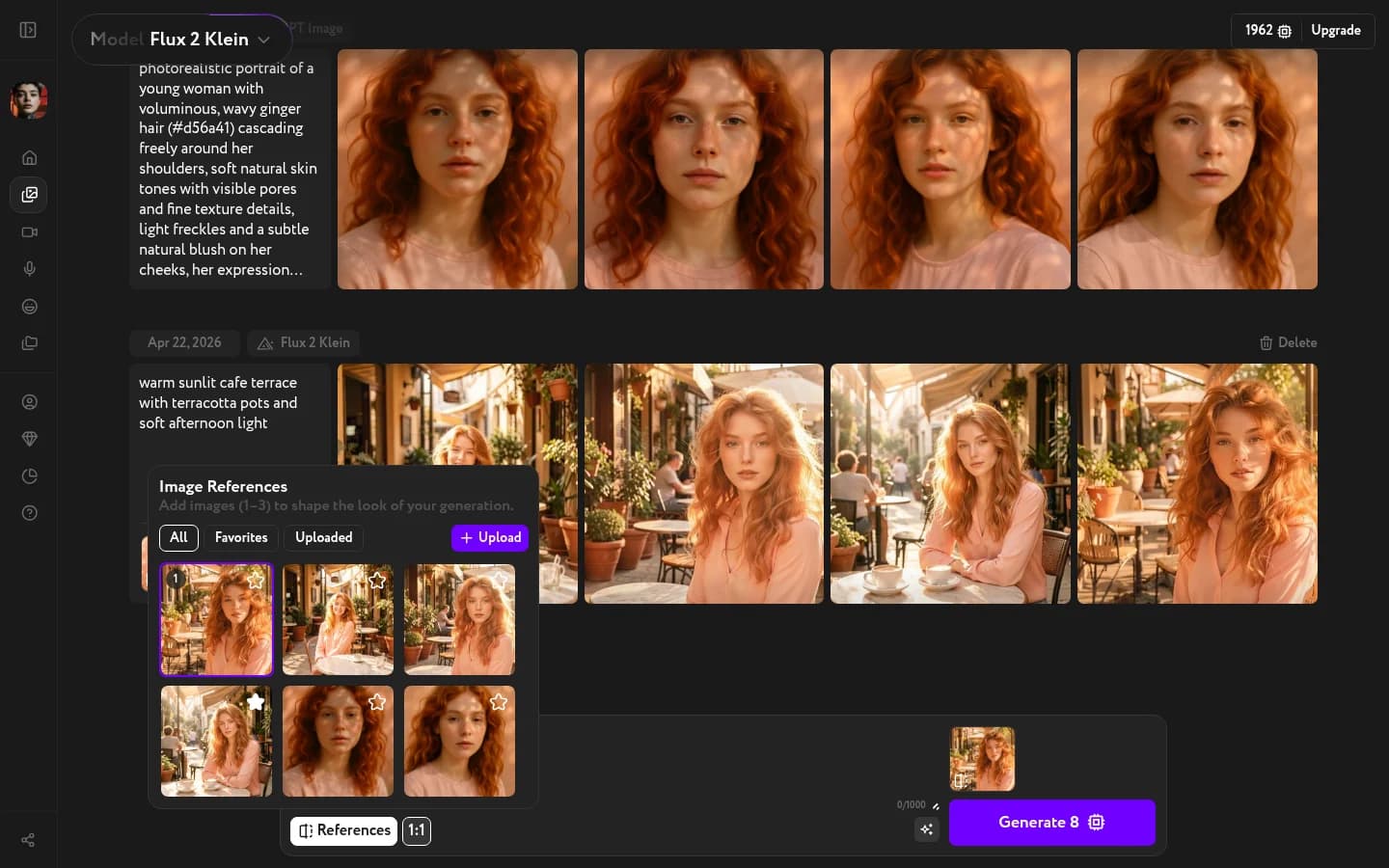
Click References in the prompt bar to open the panel. Select an image from your previous generations, your Favorites, or upload one from your device. The selected image gets a purple border and a number badge showing its selection order. A few models — Flux 2 Klein, for example — use this order when interpreting multiple references. For most models the order has no effect.
Write a transformation prompt
With the reference attached, describe what you want to change or add. The reference handles composition and style — focus your prompt on what should differ.
Generate
Click Generate. The model produces variations that incorporate both the visual reference and your prompt.