
In Image Generation, references give the AI image generation model something visual to work from — a color palette, a lighting style, a composition — instead of relying on text alone.
Open the references panel
Click the References button in the prompt bar. The panel opens, showing your previously generated images and any uploads organized across three tabs: All, Favorites, and Uploaded.
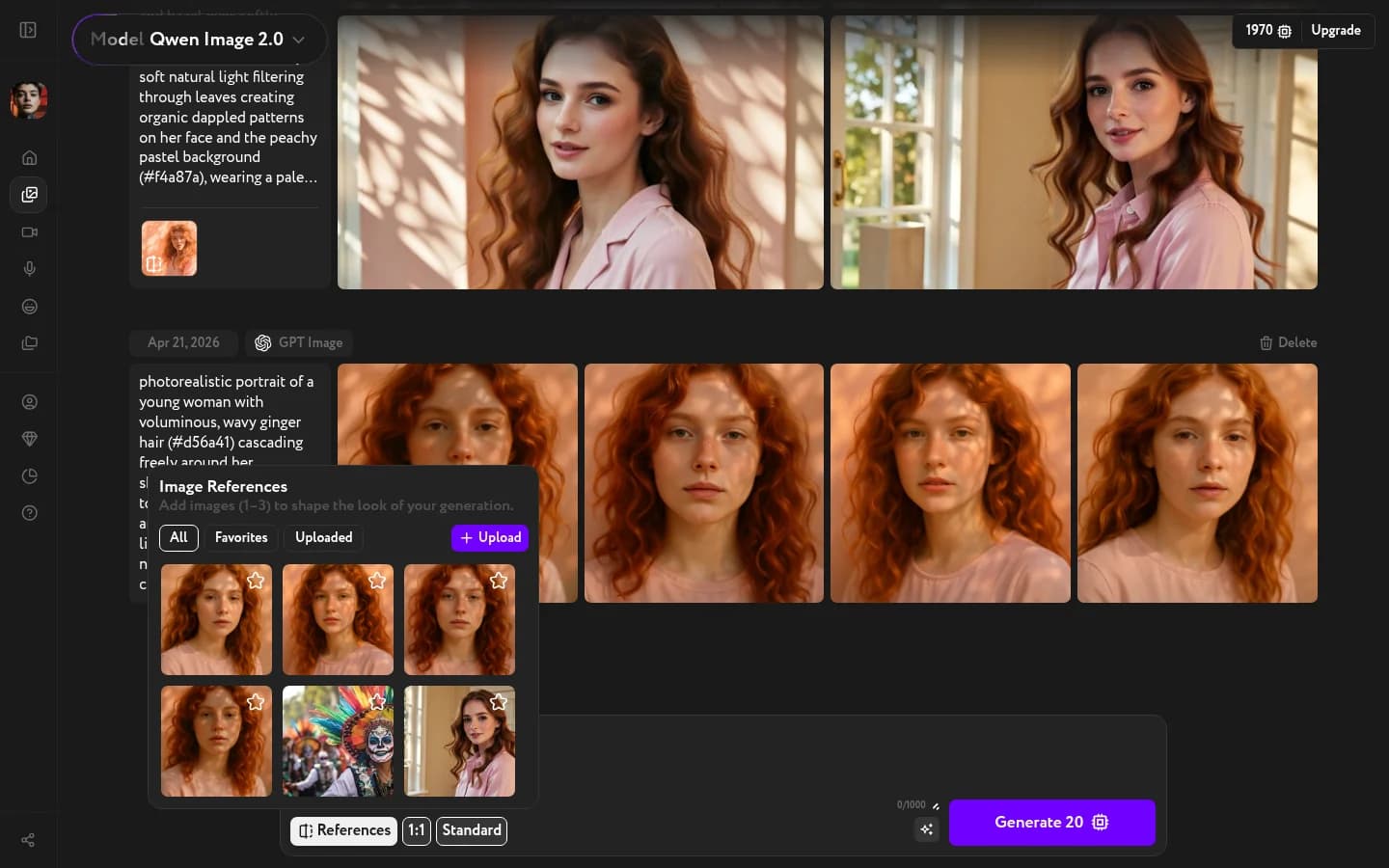
Select a reference
Click any image to select it — a purple border appears to confirm the selection. Click again to deselect. Some models accept a single reference; others let you select several. The number of active selections depends on the model — check the prompt bar once you've selected an image to see if more slots are available.
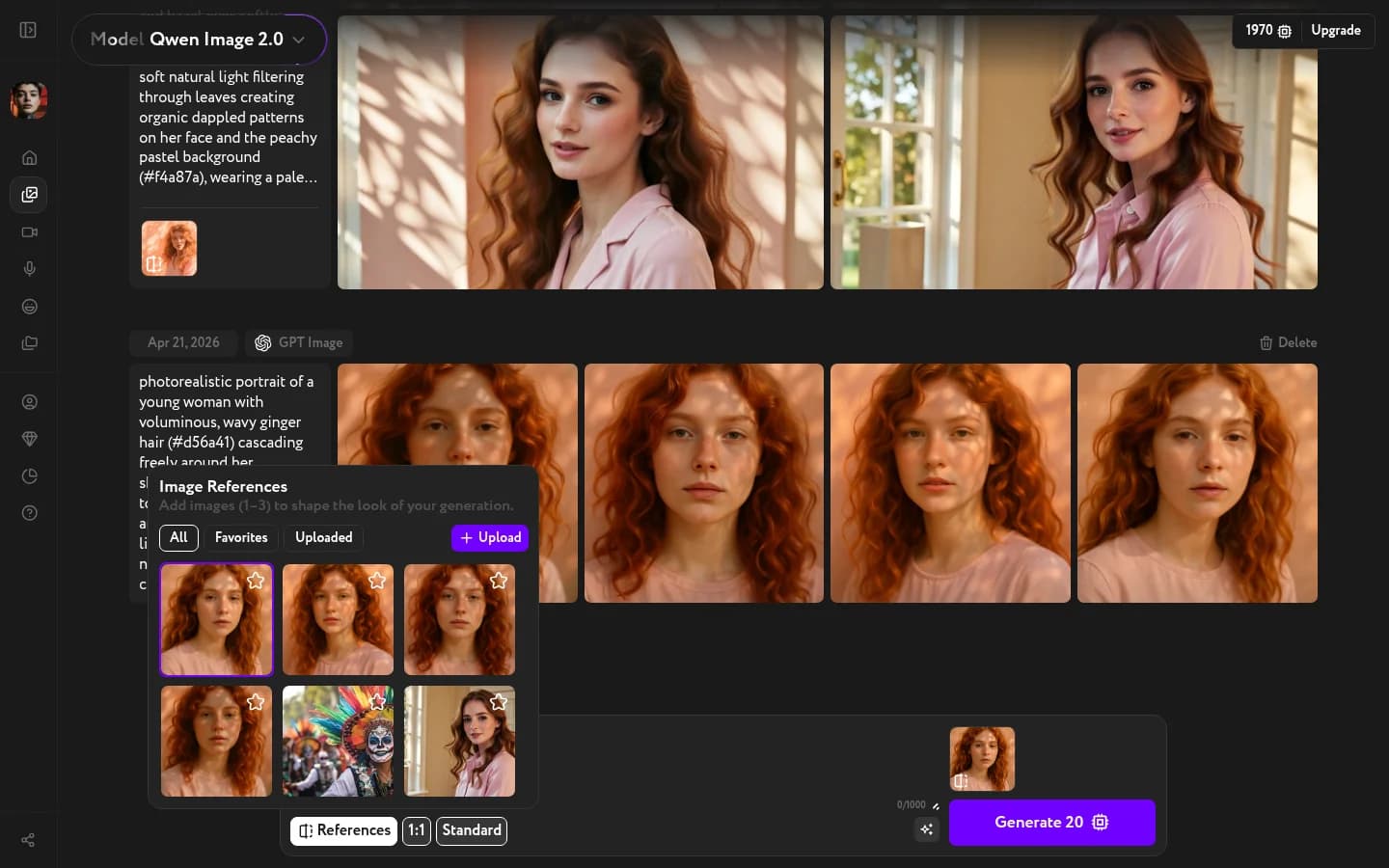
To use an image from outside Workroom, click + Upload to add it from your device. Uploaded images are automatically saved to your assets so you can reuse them later.
Generate with references
With references selected, write your prompt as usual and click Generate. The model uses the attached images to guide the visual output — style and mood are transferred, not exact content.