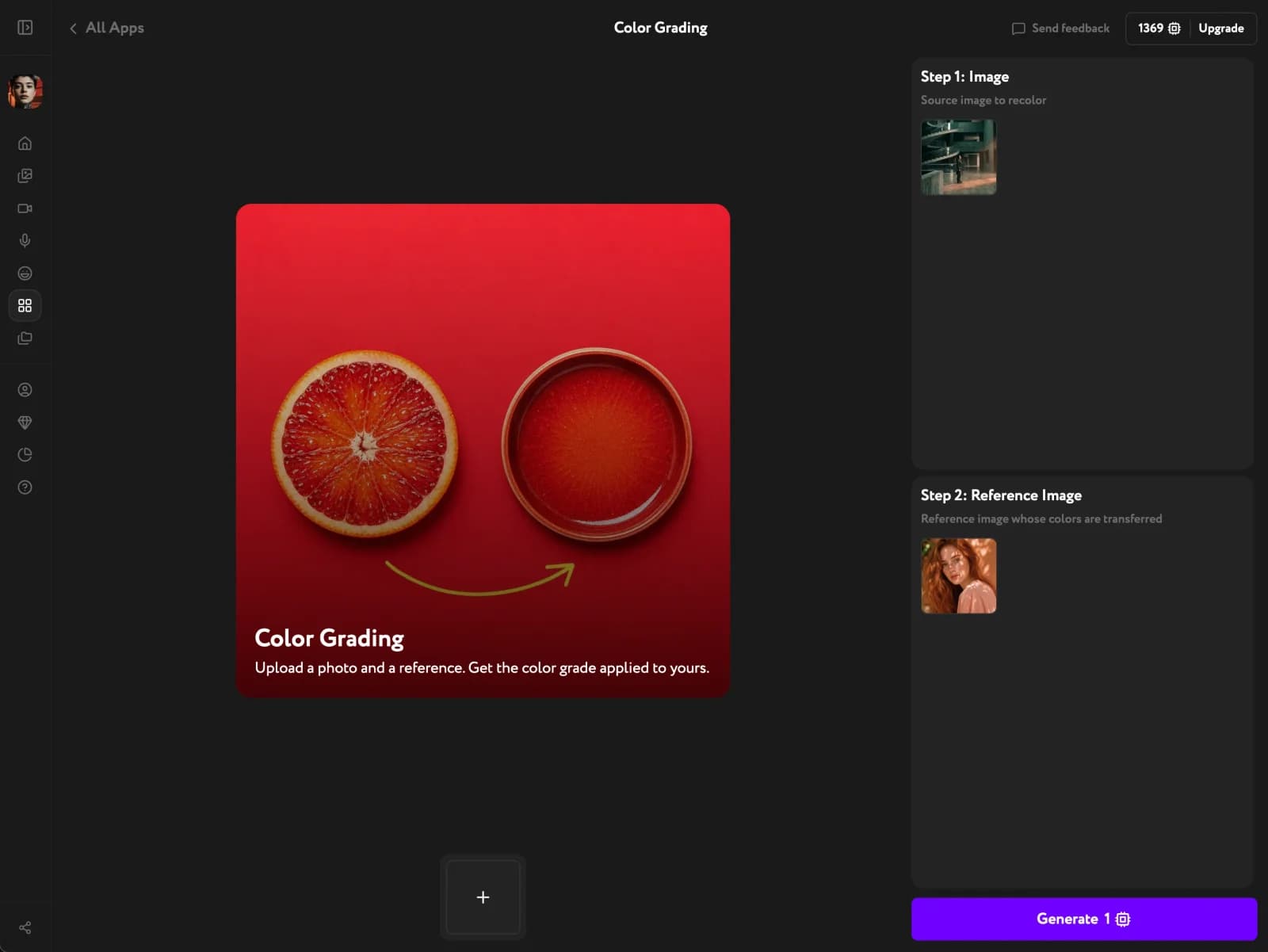
Grade a scene with a reference

Updated June 24, 2026Try Color Grading app

Color Grading borrows the look of any reference frame — a film still, a neon night, a moody painting — and washes your scene in its palette. It wraps the whole frame in the reference's color mood instead of repainting object by object, so your composition stays intact. It works best on scenes: landscapes, cityscapes, interiors, and still life.

Open Color Grading

Open Apps from the sidebar and click Color Grading. The tool opens with two input slots on the right — Step 1 for your image, Step 2 for the reference whose colors you want to borrow.

Add your image and a reference

Under Step 1: Image, upload the shot you want to grade — a landscape, interior, or cityscape works best. Under Step 2: Reference Image, add the frame whose color mood you want to transfer. JPG, PNG, and WEBP all work.
Color Grading interface with a source image in Step 1 and a warm portrait reference in Step 2
The more monochromatic and decisive the reference, the cleaner the transfer. A frame with one dominant color cast grades more predictably than a busy, multi-colored one.

Generate and download the result

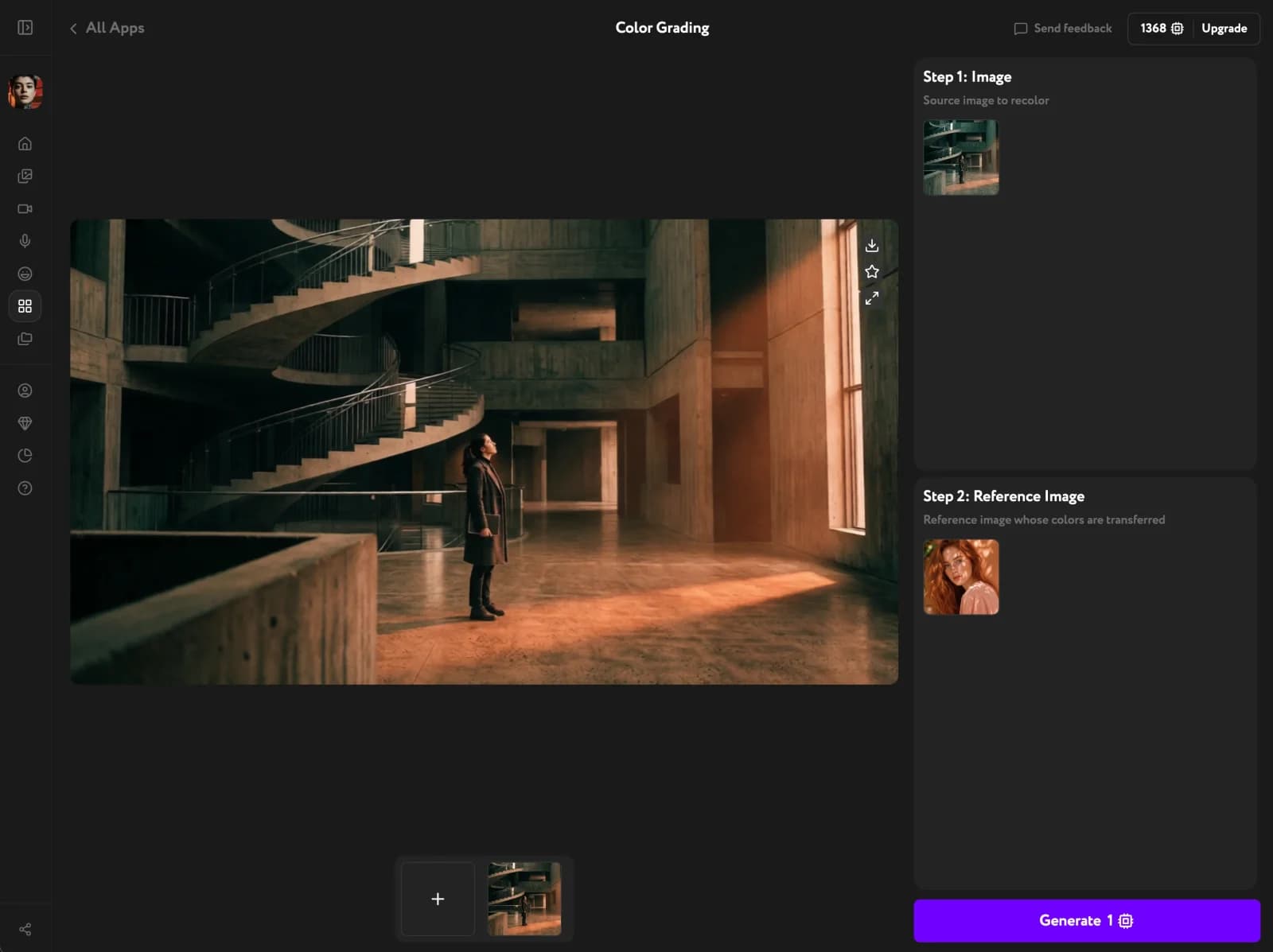
Click Generate. Your scene takes on the reference's color mood while keeping its shapes and detail. Review the result, then download it or carry it into the rest of your workflow.

Graded result in Color Grading — an interior scene washed in the reference's warm tones
Each generation costs 1 credit. Color Grading transfers a color mood across the whole frame — it is not a per-object recolor or a background swap.
A graded image is a starting point. Sharpen it with Image Upscaler, animate it in Cinema Motion when you generate a video, or reframe it with the Camera Angle Editor. For more options after generating, see Image result actions.