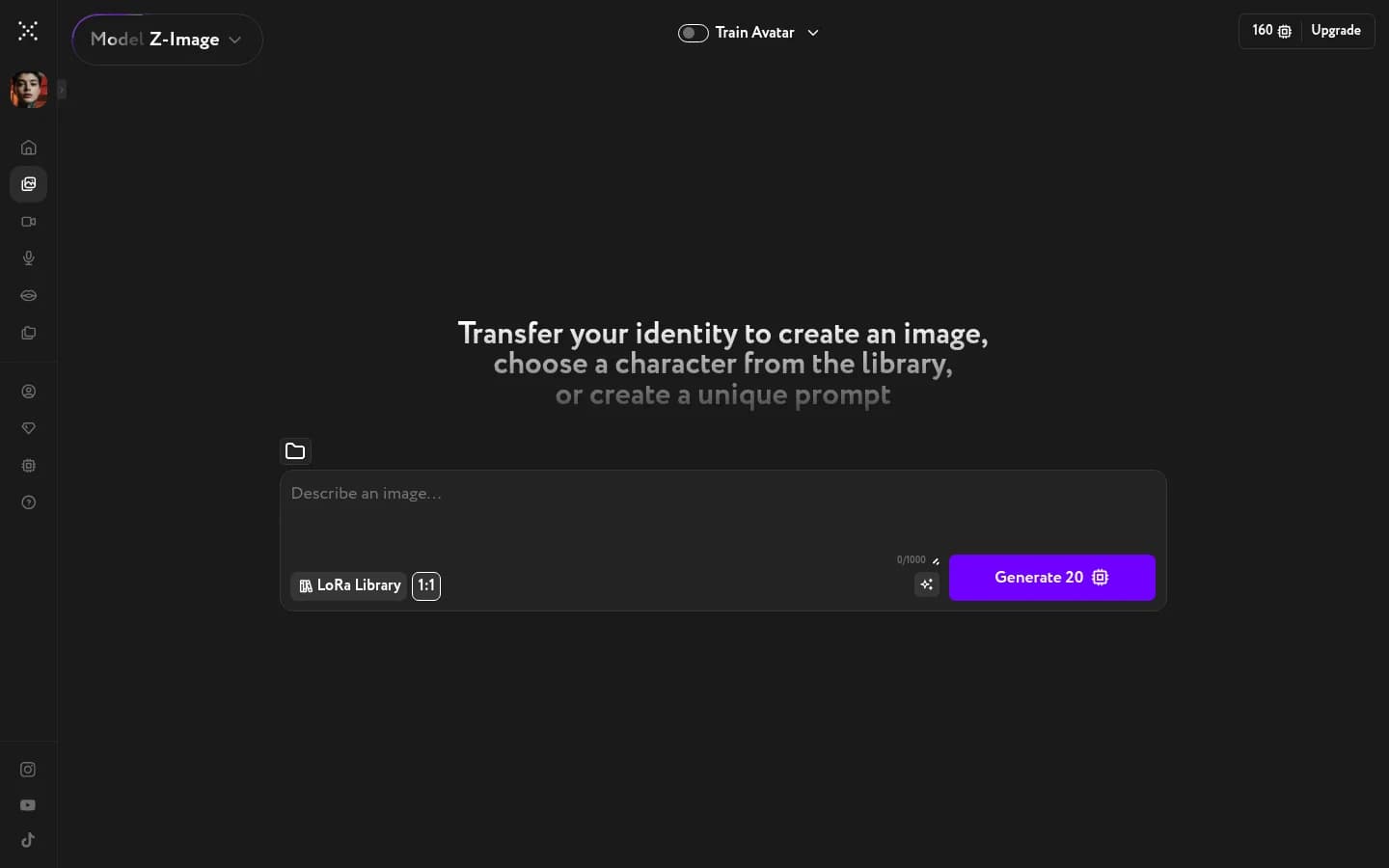
Image Generation gives you access to multiple AI image models. All generate from a text prompt. Many also support additional modes: some let you train a custom LoRA, others accept reference images for editing.
Trainable models
Trainable models generate images from a text prompt and support LoRA training. They let you teach the model your own avatar, visual style, or product. No reference image required.
| Model | What it does |
|---|---|
| Z-Image | High-quality generation with accurate prompt following and LoRA support |
Edit models
Edit models take a reference image and transform it based on your prompt. They can change the scene, style, lighting, or composition while preserving identity or structure. Some models require a reference image; others make it optional.
| Model | What it does |
|---|---|
| Qwen Edit | Prompt-based edits using reference images |
| Flux 2 Klein | Prompt-based edits using reference images |
| Qwen Image 2.0 | Fast generation and editing with balanced quality |
| Seedream 4.0 | Multi-reference control of pose, clothing, and style |
| Flux 1 Kontext Pro | Context-aware editing that preserves identity |
| Grok Imagine | Generation and editing powered by xAI Grok |
| Qwen Image 2.0 Pro | Enhanced realism and advanced text rendering |
| Nano Banana 2 | Reference-based generation for styles and drafts |
| Nano Banana Pro | High-quality generation and editing |
| GPT Image 2 | Reasoning-driven edits with pixel-perfect text and three quality modes |
Generation-only models
Generation-only models create images from a text prompt with no reference required. GPT Image adds unique controls for output quality and background transparency, making it useful for product images and UI assets.
| Model | What it does |
|---|---|
| GPT Image | Text-to-image with quality and background controls |
| Flux 2 Pro | Complex scenes, detailed prompts, and final visuals |
Switch your model
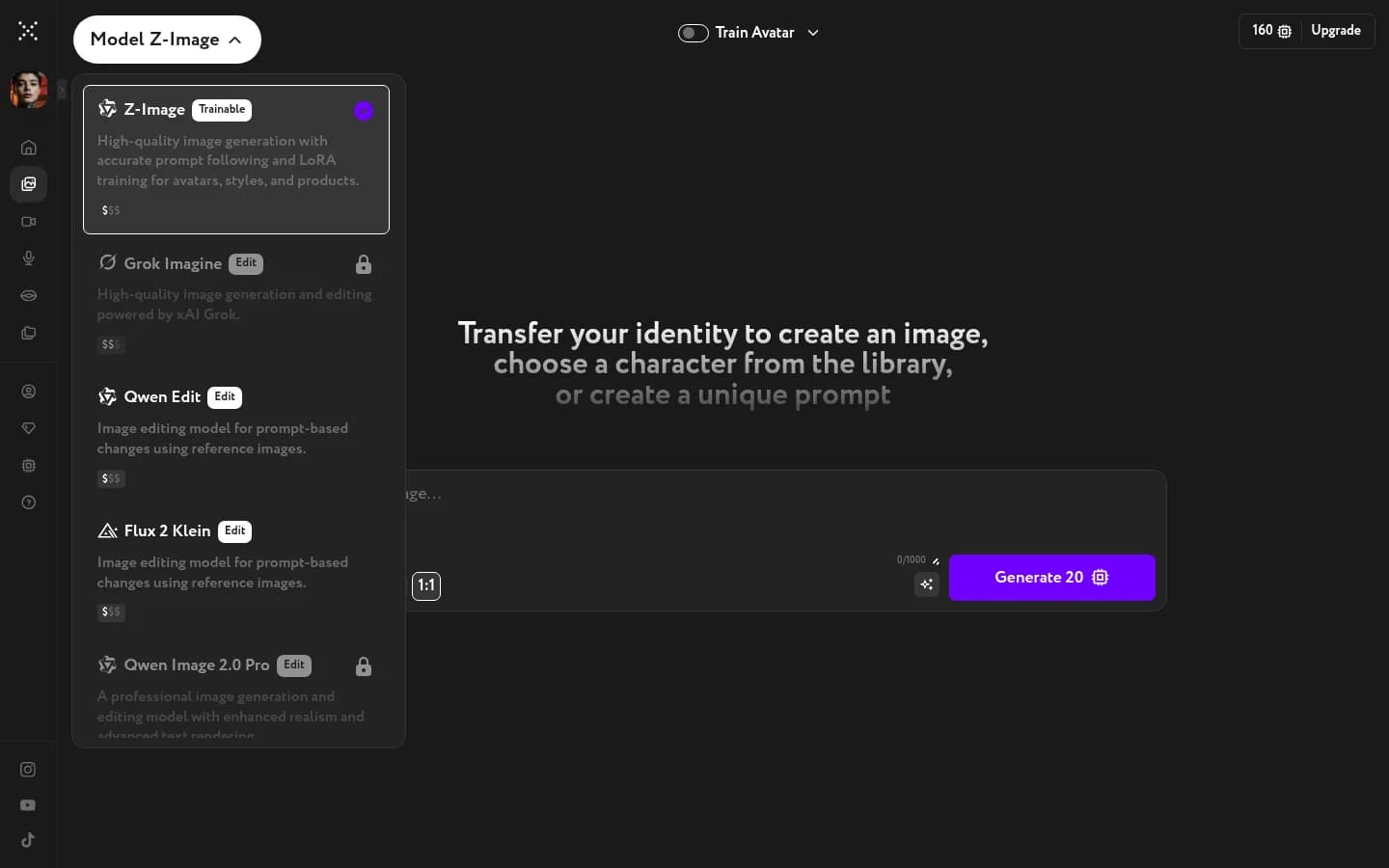
Open the model selector in the top-left corner of Image Generation. Each model shows its type badge, a short description, and a price tier. On the Free plan, premium models show a lock icon and require an upgrade to access.
Prompt examples by model
Tested prompts for these models, each shown next to the picture it produced. Copy one as a starting point for your own.
- FLUX.2 Klein — model overview
- GPT Image 2 — prompt examples · model overview
- Grok Imagine — prompt examples · model overview
- Nano Banana 2 — prompt examples · model overview
- Nano Banana Pro — prompt examples
- Qwen Image 2.0 — prompt examples · model overview
- Seedream 5 — prompt examples
- Seedream 5 Pro — prompt examples
- WAN 2.7 — model overview
- Z-Image — prompt examples