
Build a character prompt

Updated April 23, 2026See Picture Lab app →

The Character Builder in Picture Lab's AI image generator turns visual attribute selections into a ready-to-use prompt. Pick the traits — the builder assembles the character description for you.

Open the Character Builder

Click the Prompt Generator button (sparkle icon) at the bottom-right of the prompt area. The builder panel opens alongside the generation view.

Configure your character

Work through the fields — Gender, Age, Origin, Body Type, Hair Type, Hair Color, Background, Pose, Lightning, Lens Type, and Camera Angle. Each selection adds a token to the prompt preview at the bottom of the panel. You can select multiple options per field where available.
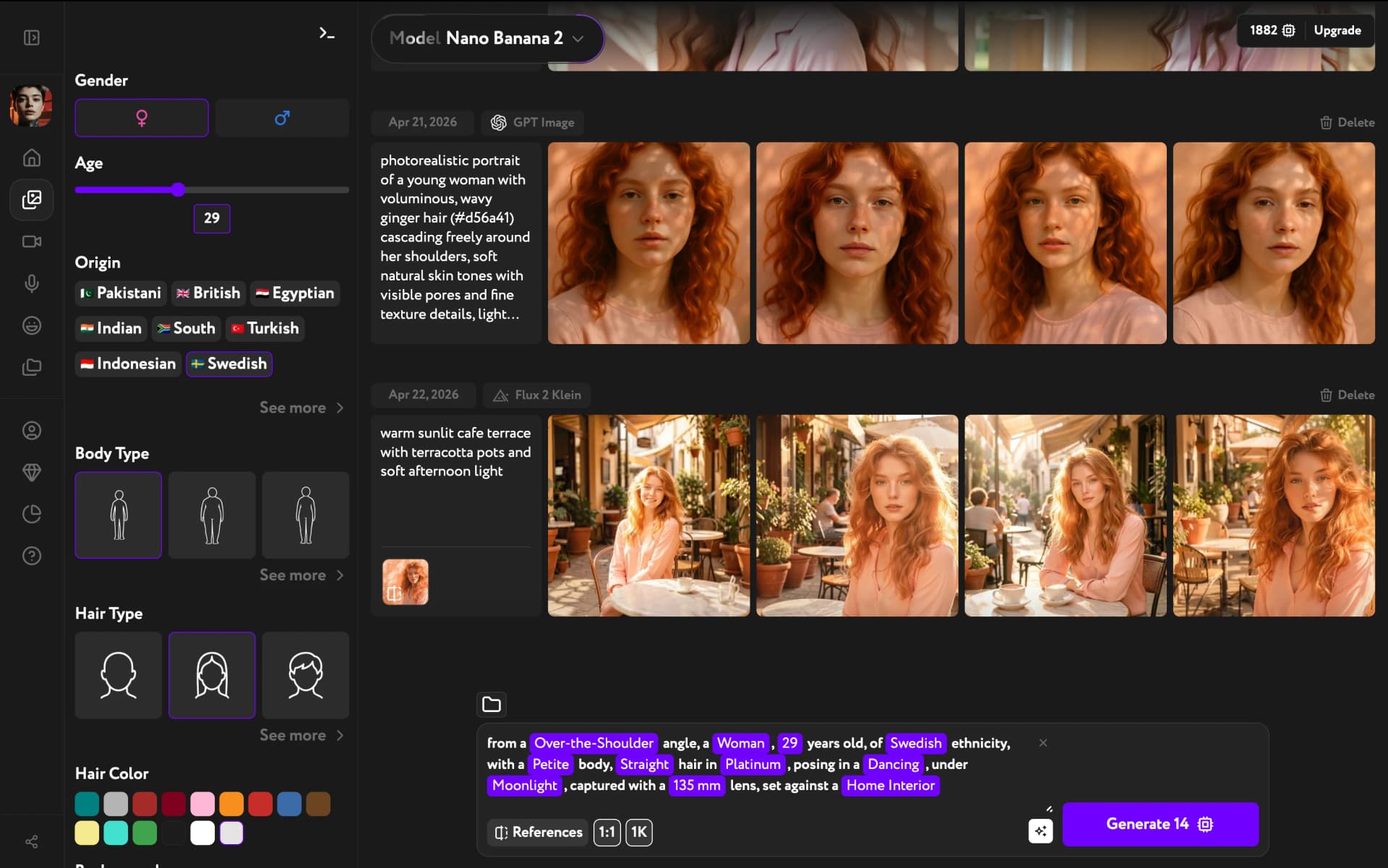
Character Builder with all attributes filled in — assembled prompt visible at the bottom

Apply and generate

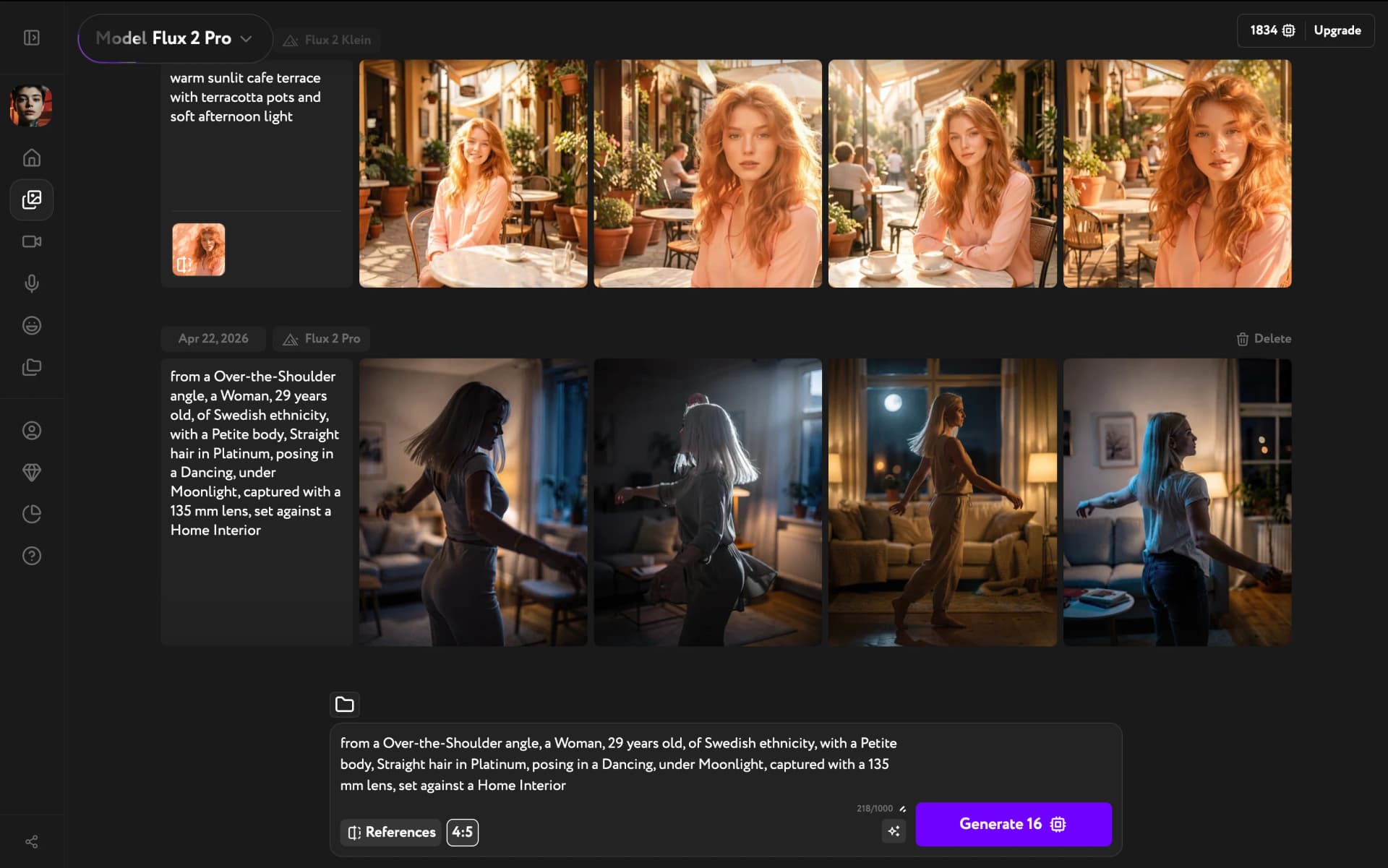
Click Close to close the panel. The assembled character description appears in the generation textarea as editable text — refine it or use it as-is, then click Generate.
If you edit the prompt after closing the builder and then reopen the builder, you will see a warning that the custom text in the textarea will be reset to the builder's current selections. The builder does not preserve manual edits — keep this in mind if you plan to switch between the two.
Character image generated from the assembled prompt
The builder produces a descriptive base — feel free to add scene details, lighting, or style after it applies the character prompt. For example, append "standing on a rooftop at golden hour" to give the character a setting.
New to generating images? See Generate your first image for a full walkthrough of the generation flow.