
Gladiator Streetball Dunk
Editor's note
A gladiator dunks twice on a Spartan in the Colosseum, crowd on its feet. One street clip sets every cut; three stills swap the cast and the court.
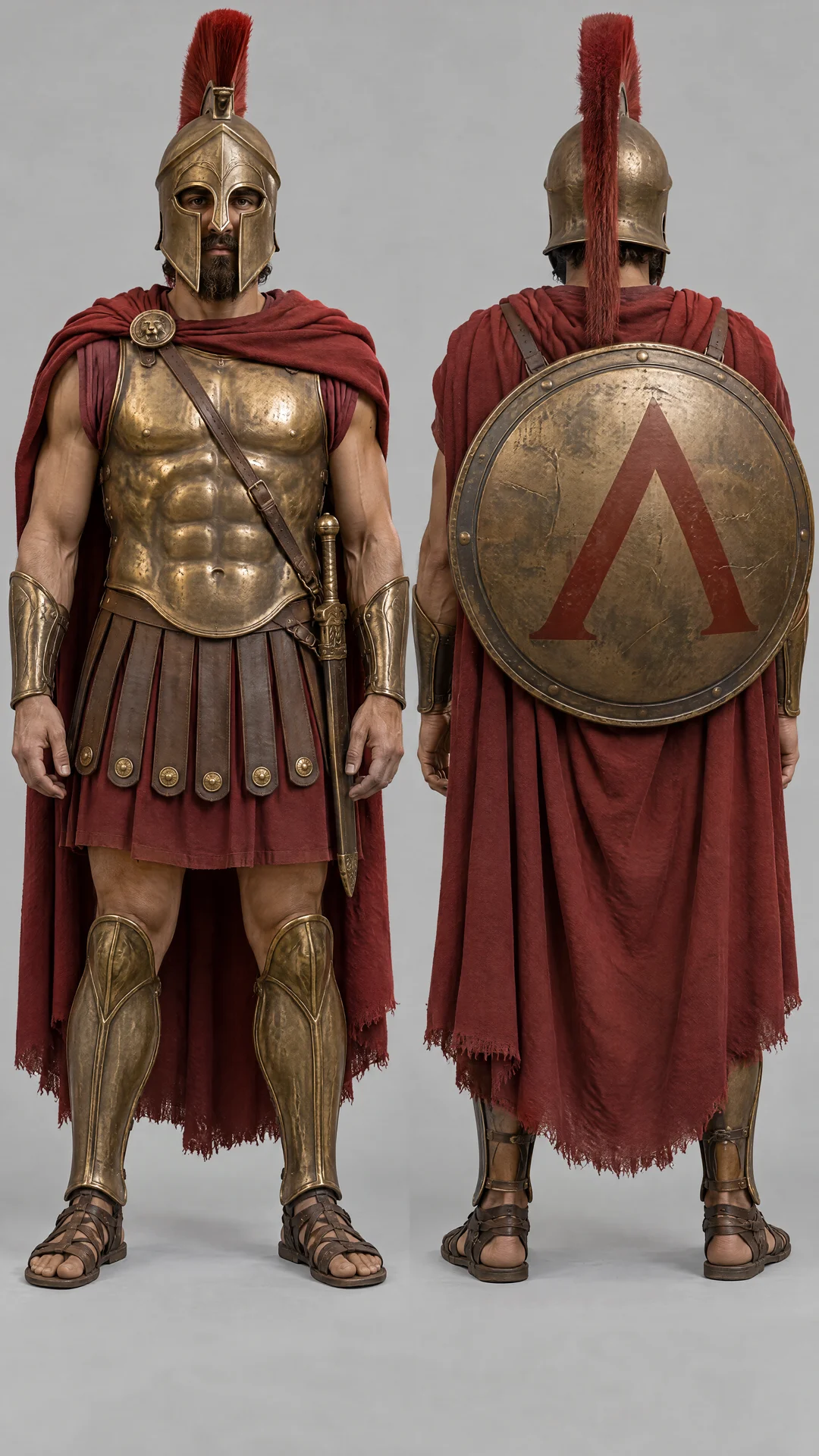
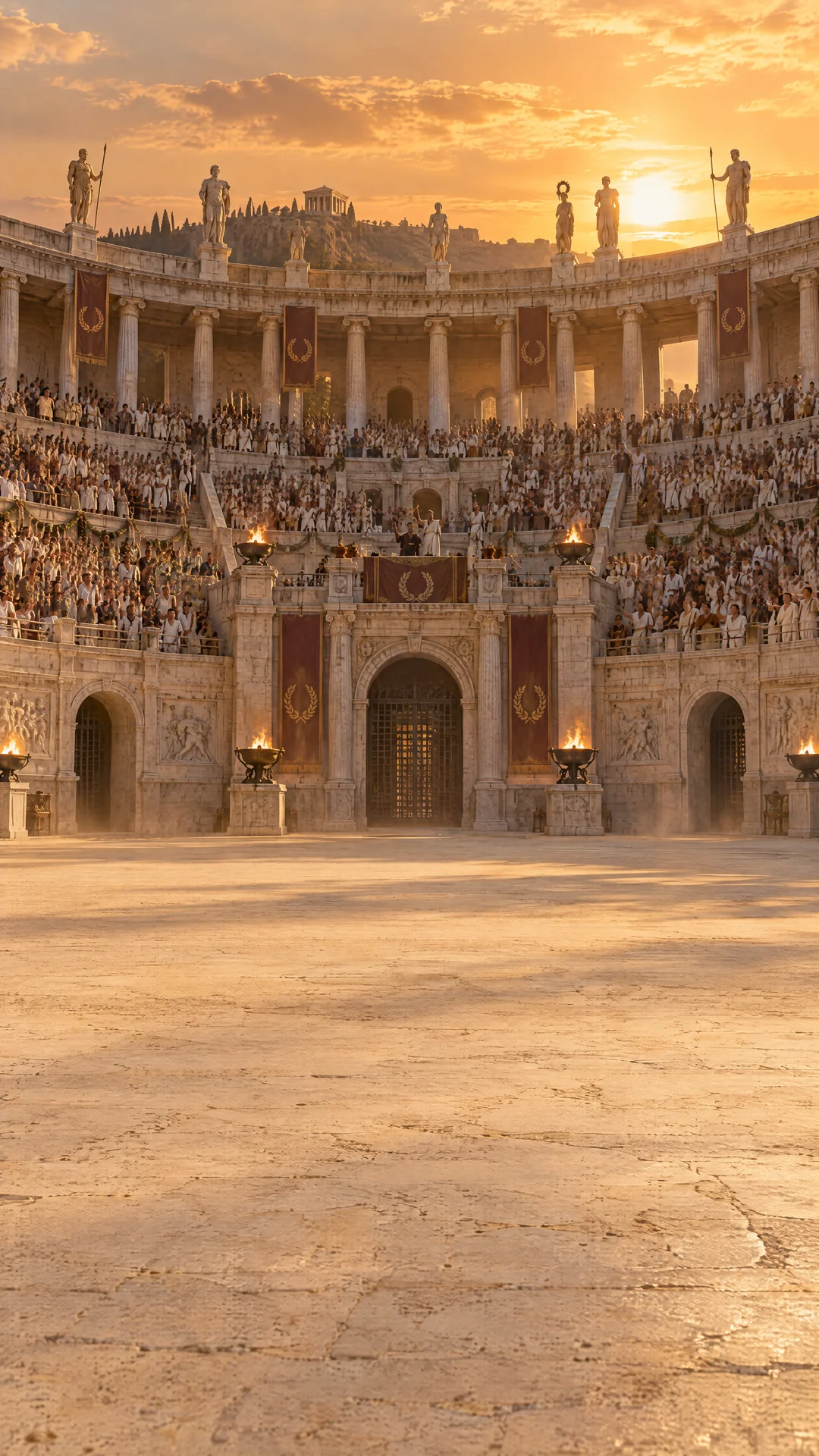
@Video1 controls motion, camera, composition, cuts, slow motion, timing, and sound; keep all of it exactly. @Image1 controls the identity of the scoring player (drives, dunks twice, celebrates to camera): replace the player in every shot with the person from @Image1, including face, hair, build, outfit. @Image2 controls the identity of the defender who gets dunked on: replace the defender in every shot, including the final one; if @Image2 is not provided, keep the original defender. No trace of the originals. If @Image3 is provided, it controls the location: replace the environment with that place. Rebuild court, hoops, background, crowd, lighting, and grading to fit it. If @Image3 is not provided, keep the original environment. In the final shot, the only player in frame is the already replaced defender (from @Image2, not the original), standing in the center with a hand covering the face. Remove the man behind; keep the crowd. Keep choreography, dunks, celebration.
What You Need
The prompt points to each file by its tag, like @Video1. Download the examples or bring your own.
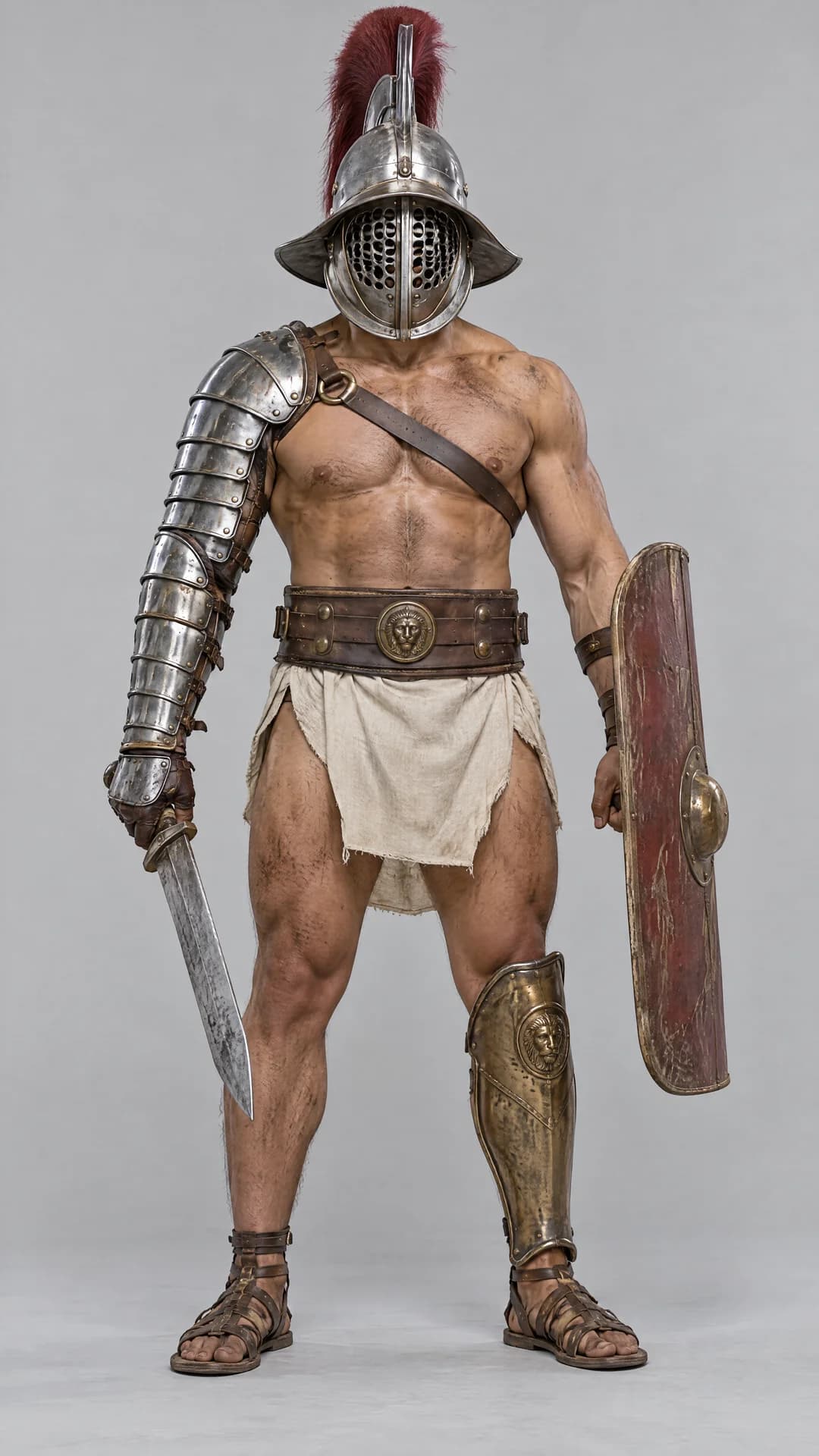
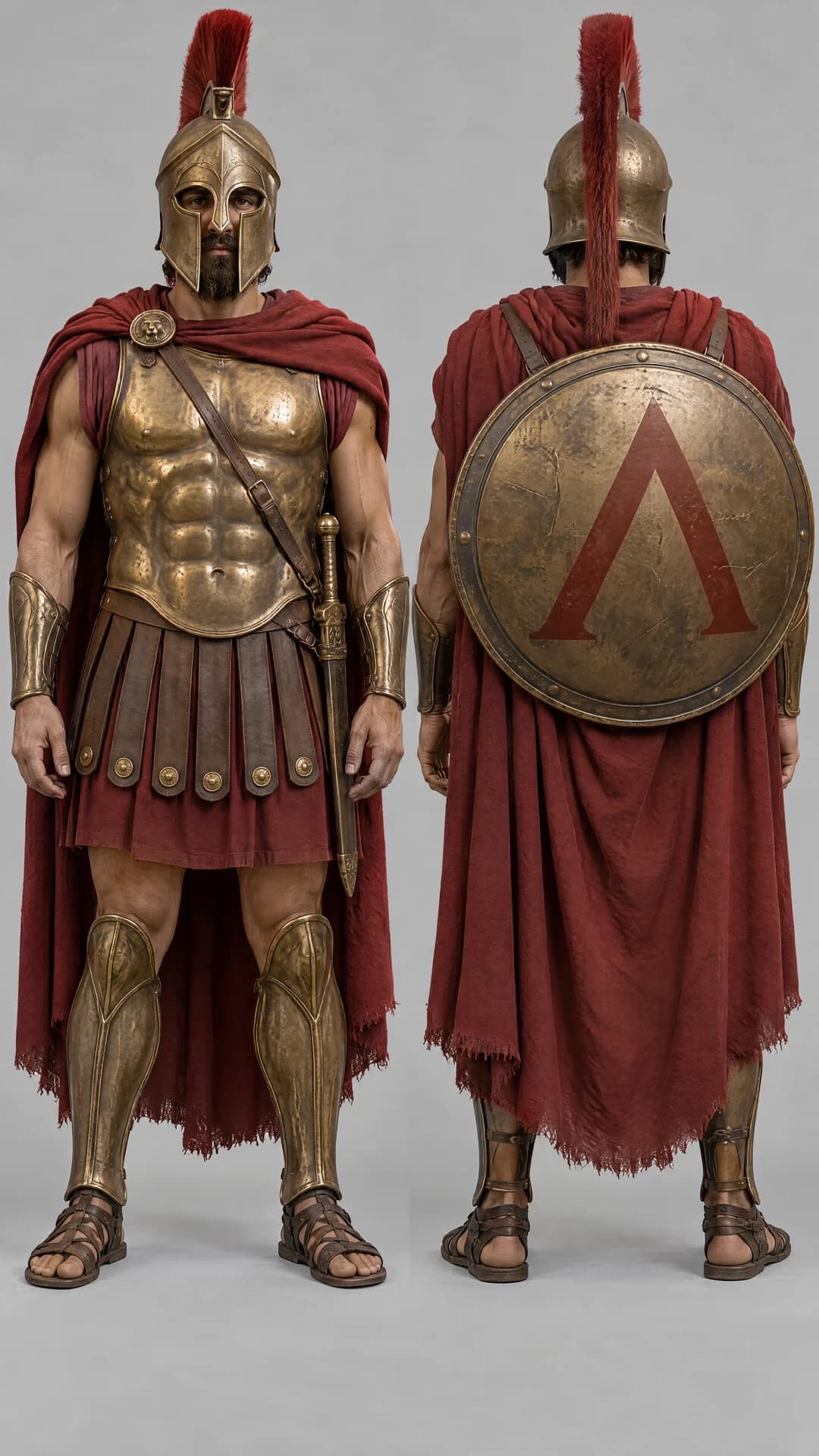
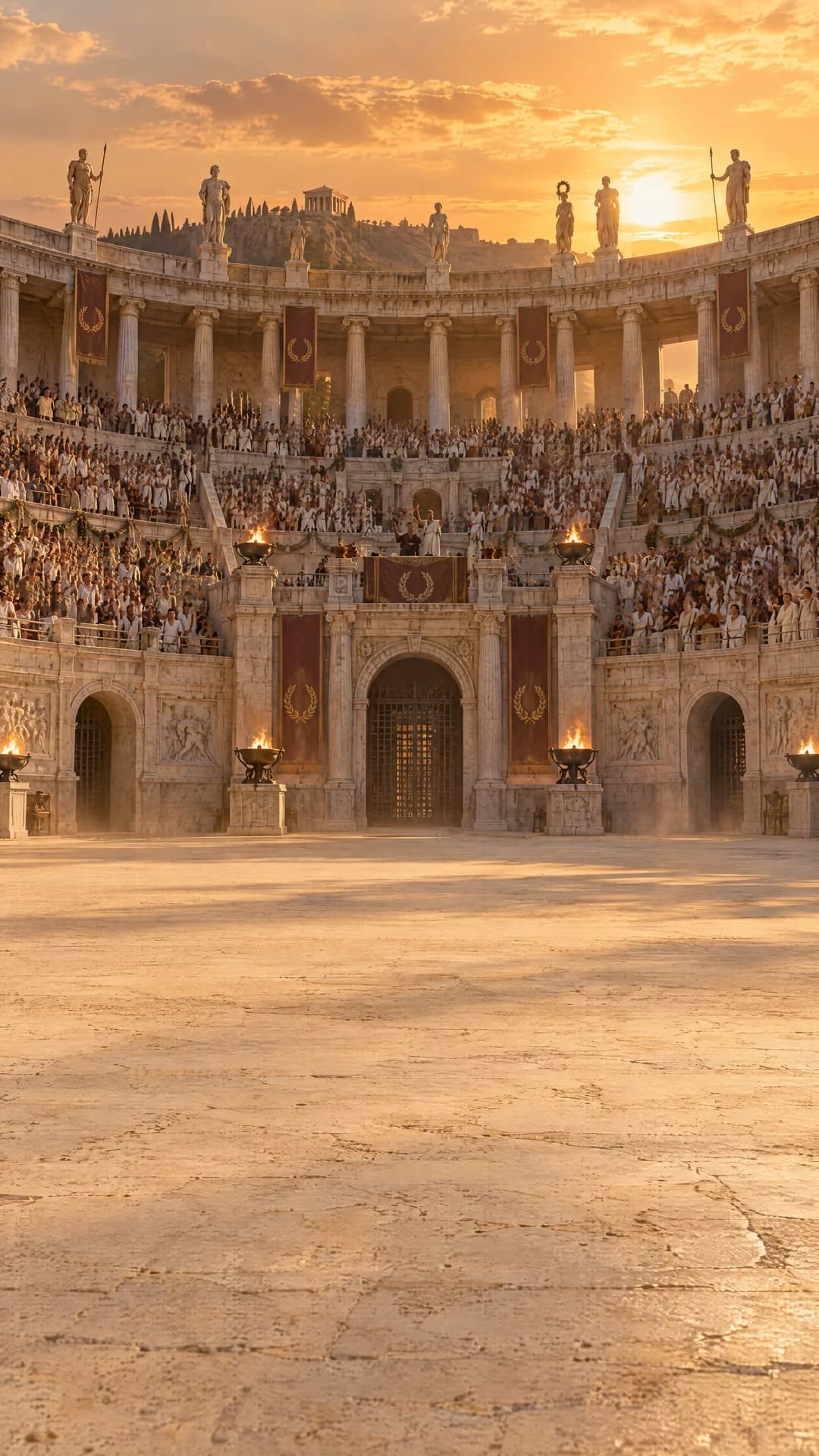
How to Use This Prompt
- 1Copy the prompt above — the full text, not a trimmed version.
- 2Open Workroom: Video → WAN 3.0. Use reference mode; in settings pick 720p or 1080p and 10 seconds.
- 3Upload the files in this order: Video 1 → Image 1 → Image 2 → Image 3.
- 4Paste the prompt and hit Generate. Check the first result before making more.
Every prompt in the library works the same way — copy, paste into the model, generate.
Explore More Video PromptsSame Workflow, Other Results
Same prompt and Video 1, different Image 1, Image 2 and Image 3.
 More from WAN 3.0
All Video Models





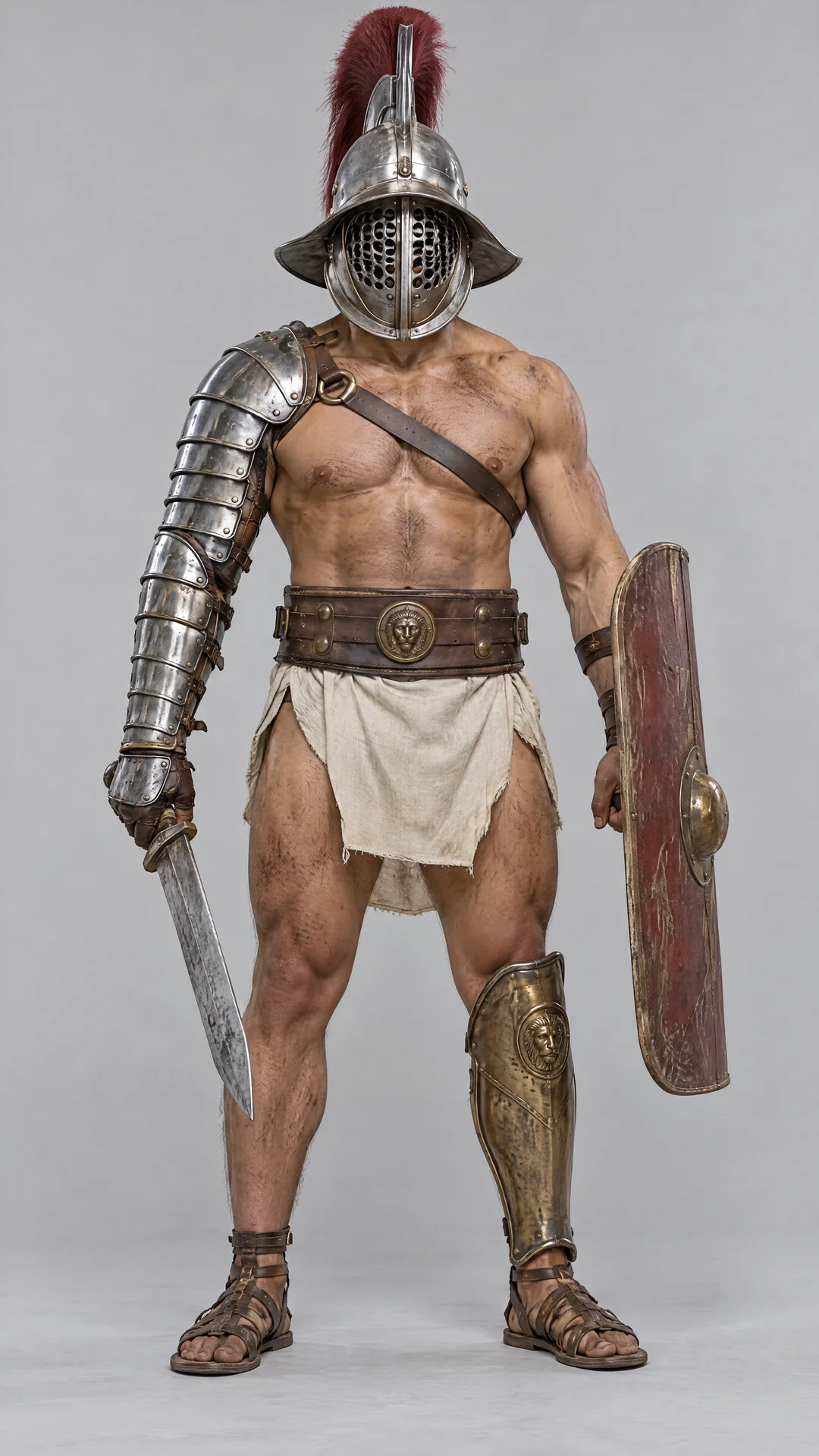
Every prompt here was actually run.
Workroom is one account for every image and video model — pick any prompt above, or start from scratch.