
Topaz Video Upscaler is Workroom's AI video upscaler with a choice of three Topaz Labs models and output up to 4K. It works frame by frame, so the whole video stays sharp in motion — and you choose how the missing detail comes back. Open Apps from the sidebar and click Topaz Video Upscaler to start.
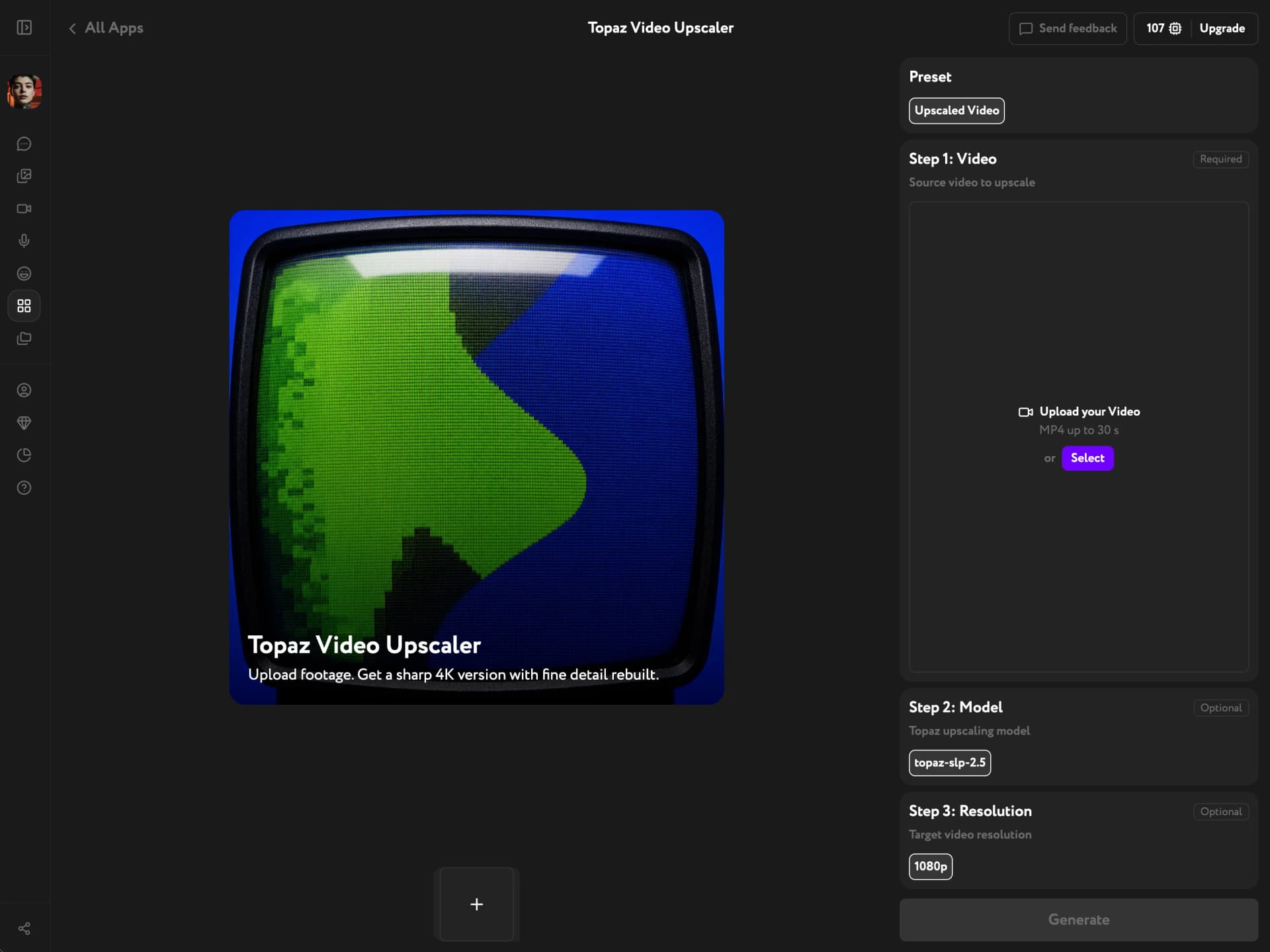
Select your video
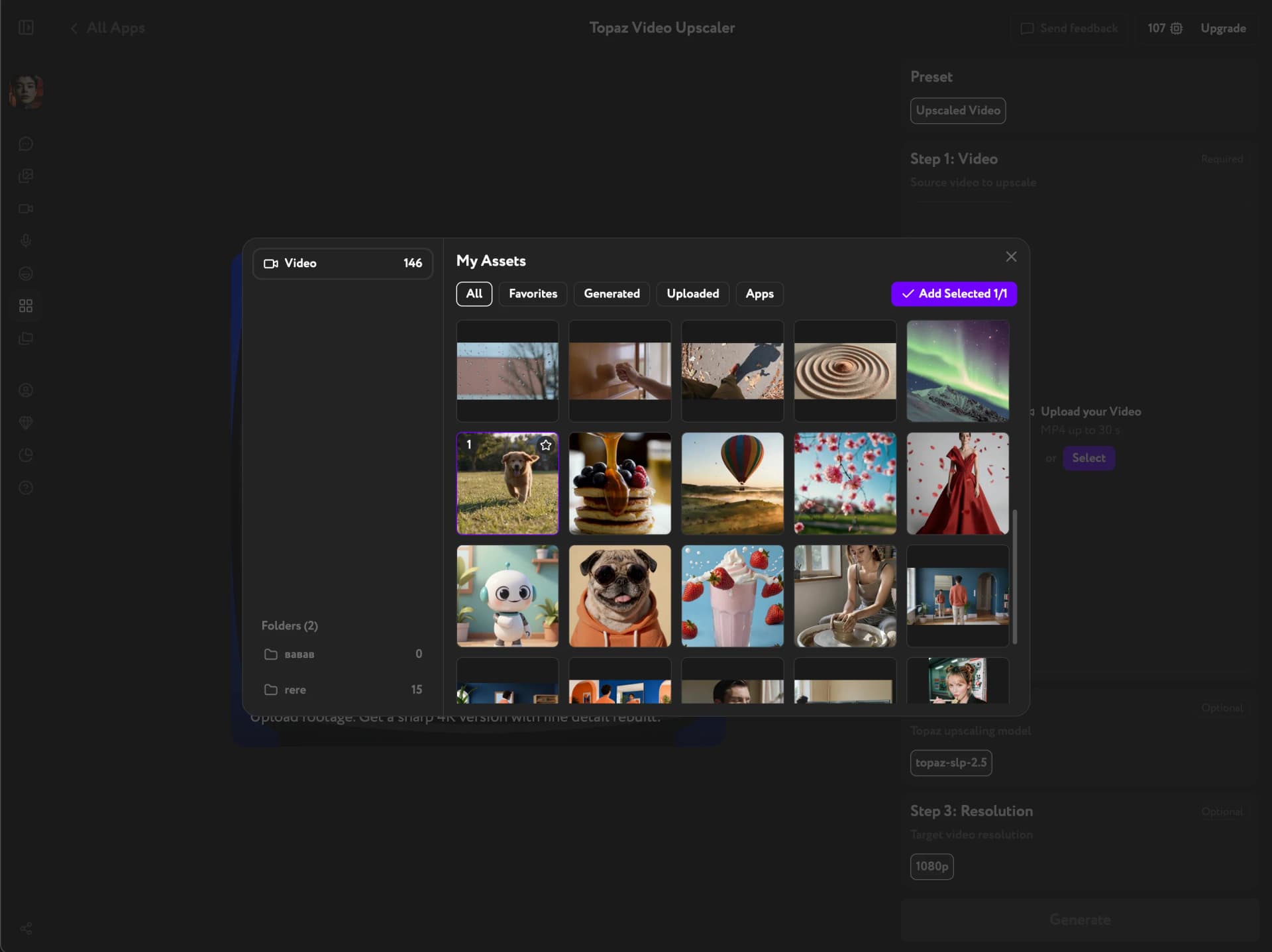
Click Select, or open Assets and pick a video. Browse Generated, Uploaded, Favorites, or Apps content. Click the video to select it, then confirm. You can also upload your own file straight from your device.
- MP4 only, up to 30 seconds.
- Any footage works — camera material, compressed exports, or video you generated elsewhere in Workroom.
- Cost is charged per second of the source video, so trim the video first if you only need part of it.
Choose the model and resolution
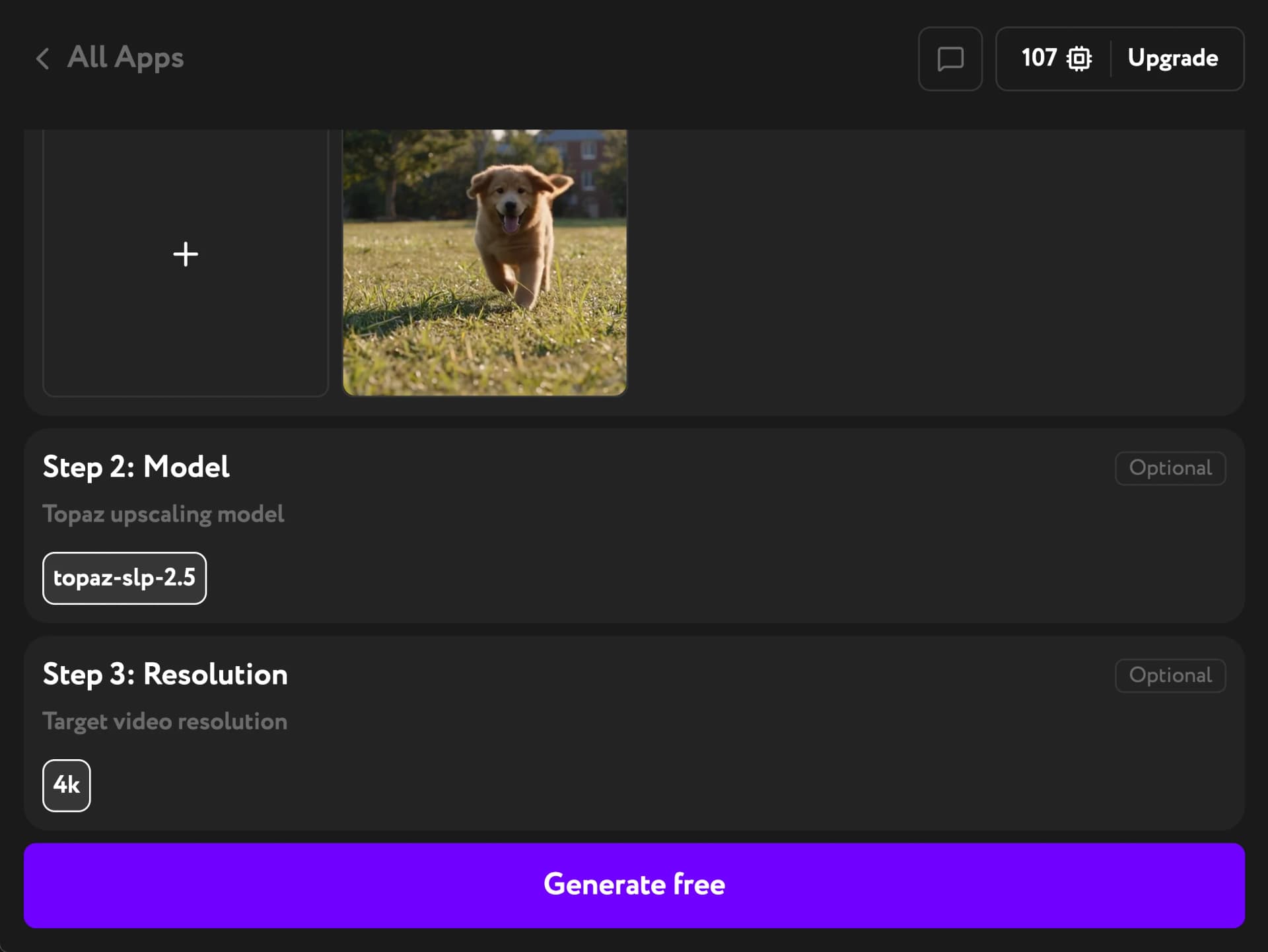
This is the choice that shapes the result. All three models raise resolution; they differ in how much detail they are allowed to invent.
Proteus 4 — start here for real footage: interviews, product shots, or anything with a face or a logo that has to stay exactly as filmed. Proteus cleans up compression artifacts and sharpens what is already in the frame. It doesn't add detail that was never there, so people stay recognizable and text stays true. It's also the cheapest of the three, which makes it the right first try for almost any video.
Starlight Precise 2.5 — use for AI-generated or heavily compressed video that looks soft and plasticky. Starlight rebuilds fine detail that was never captured — individual hairs, skin texture, fabric weave, the edges of small type. It's the right choice when the source simply has no detail to sharpen.
Astra 2 — use for stylized, deliberately hyper-detailed results. Astra is the most aggressive of the three. It adds new texture and detail rather than restoring what was filmed, so the output becomes a creative interpretation of your video. Reach for it when you want a look, not a faithful copy.
Set the target resolution to 720p, 1080p, 1440p, or 4K. The default is 1080p. Pick 4K when the video will play full screen or on a large display. 1080p is enough for social and web.
Generate and download
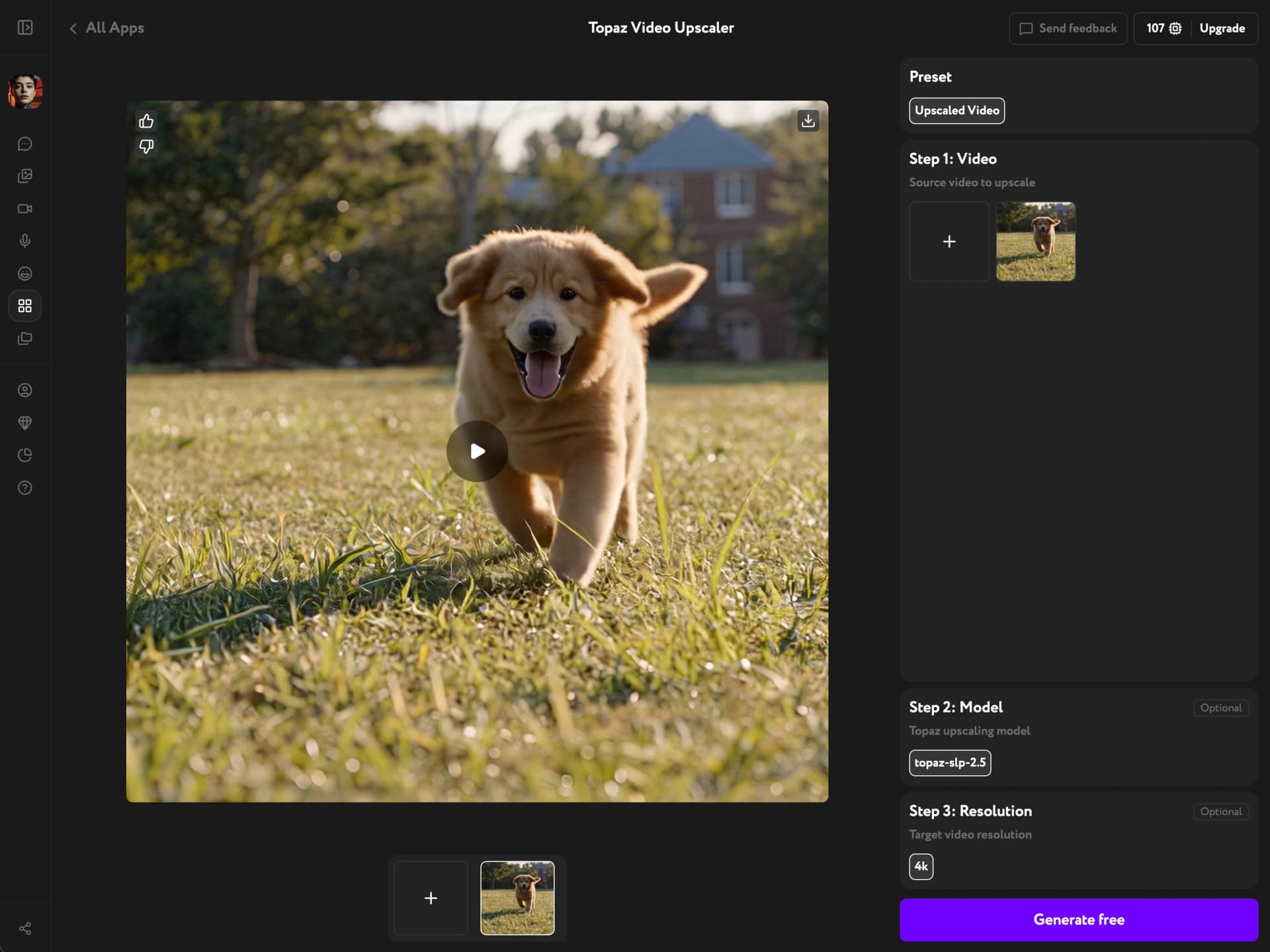
Click Generate. The result plays back in the workspace when it's ready. Use Download to save it, or keep it in Workroom for the next step in your pipeline.
The upscaled file is encoded as H.265 (HEVC) and is much larger than the source. Most modern players and editors handle it; if yours does not, convert the file after downloading.
Getting the best result
- Match the model to the source, not to your budget. Running Starlight on clean camera footage changes faces for no gain; running Proteus on a soft AI video leaves it soft.
- Test on a short video first. Upscale a few seconds and look at it full screen before spending credits on the whole thing.
- Don't upscale twice. Passing an already-upscaled video through again amplifies artifacts instead of removing them.
- Upscale last. If you also plan to swap a face, add lip sync, or add sound, do that first and upscale the finished video.
Troubleshooting
The result looks different from the original footage. Starlight Precise 2.5 and Astra 2 generate detail rather than restore it, so they can change fine details on close-ups. Switch to Proteus 4 if the shot needs to stay exactly as filmed.
My file won't upload. Topaz Video Upscaler accepts MP4 only, up to 30 seconds. Trim longer videos before uploading, or pick a shorter section from Assets.
The downloaded file won't play. The output is H.265 (HEVC), which not every player supports. Convert the file with any video converter after downloading, or open it in a modern editor.